Components
AvatarThe Avatar component visually represents a user or entity, typically using an image, initials, or a placeholder. Indicators, such as badges or status icons, are placed with an outline to ensure contrast and clear distinction between the Avatar and the associated information.

Usage
The Avatar is used to visually represent users or entities in a compact and recognisable way. It is commonly applied in scenarios such as:
- User Profiles: Displaying a user's photo, initials, or a placeholder when no image is available.
- Collaboration Tools: Identifying team members, contributors, or participants in a group setting.
- Status Indicators: Highlighting real-time information, such as online/offline status.
Types of Avatars
The Avatar component is available in three distinct variations: Text, Image, and Signed-out. Each variation serves a unique purpose, ensuring flexibility and adaptability across different user states and design needs.
Text
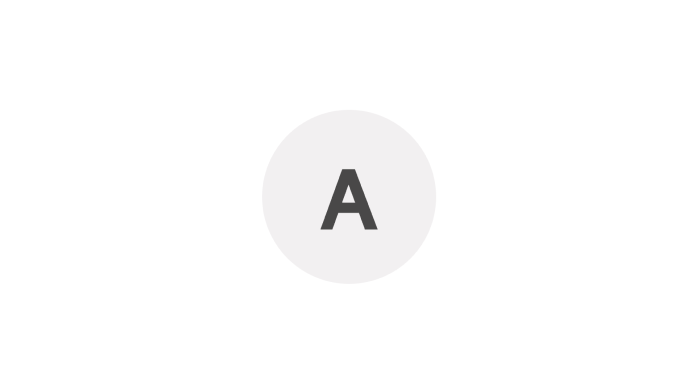
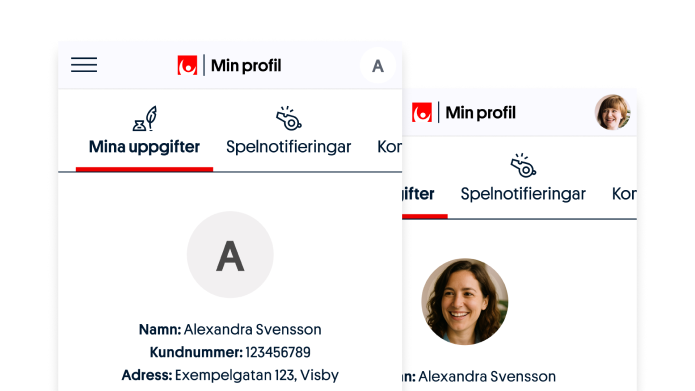
When an Avatar is assigned to a user, it defaults to displaying the first letter of the user's name as the primary visual element. This ensures a clear and meaningful representation of the user, even in the absence of a custom image or icon.
Image

When an image is provided for an Avatar, it takes precedence and replaces the default initial-based representation. The image is displayed as the primary visual element, offering a more personalised and identifiable representation of the user.
Signed-out

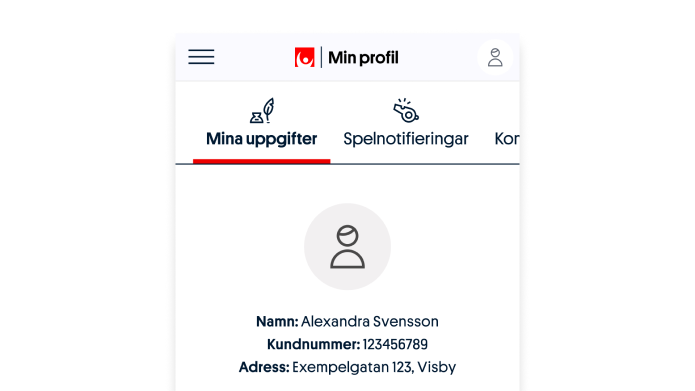
The Signed-out Avatar is displayed when no user is logged in. It serves as a placeholder to indicate the absence of an active user, ensuring a consistent visual experience even in an unauthenticated state.
Avatar sizes
The Avatar component is designed to be versatile and adaptable, supporting a range of sizes to suit various contexts and layouts. Available in seven distinct sizes, the Avatar ensures scalability while maintaining visual consistency:
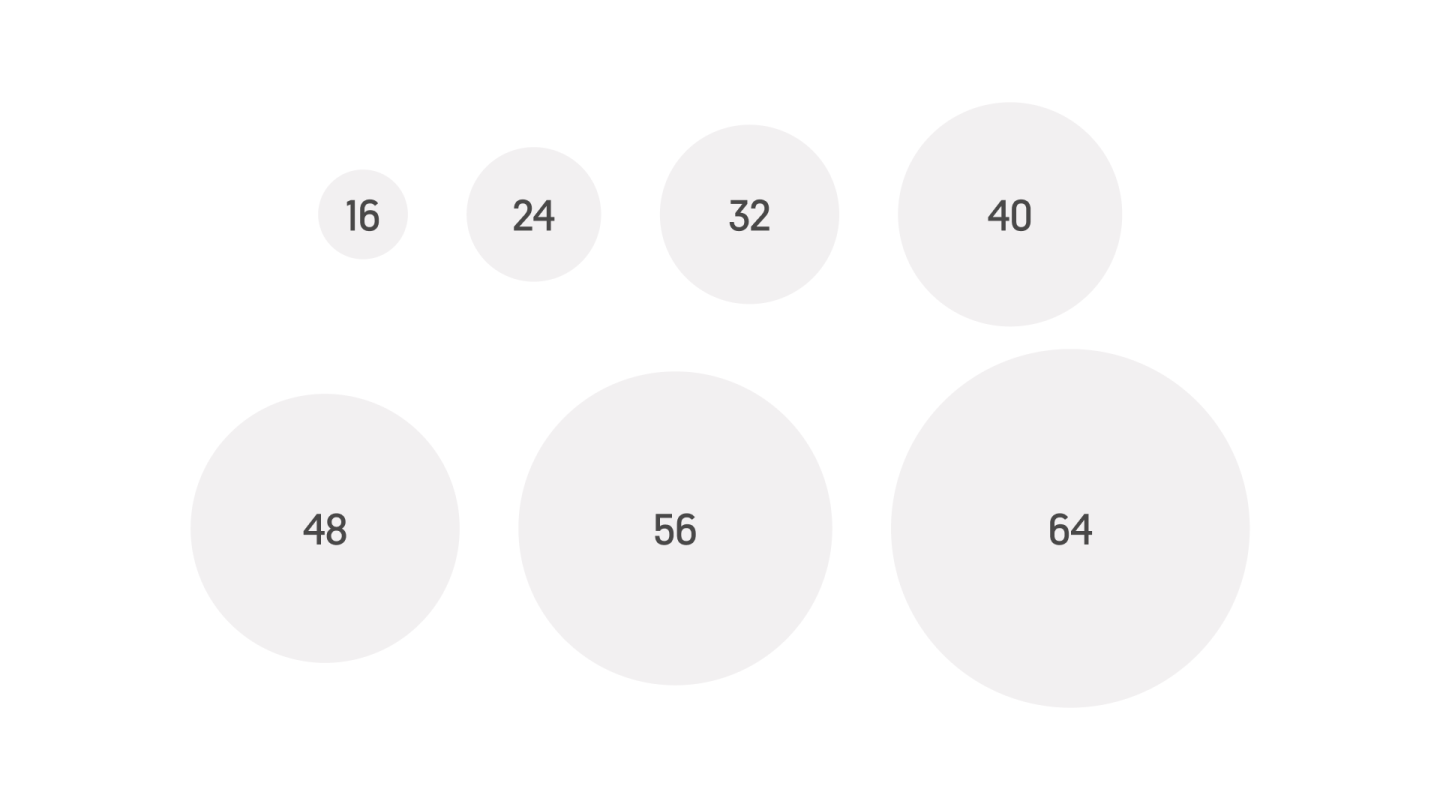
16 px – XXS
24 px – XS
32 px – S
40 px – M
48 px – L
56 px – XL
64 px – XXL
Anatomy
Text
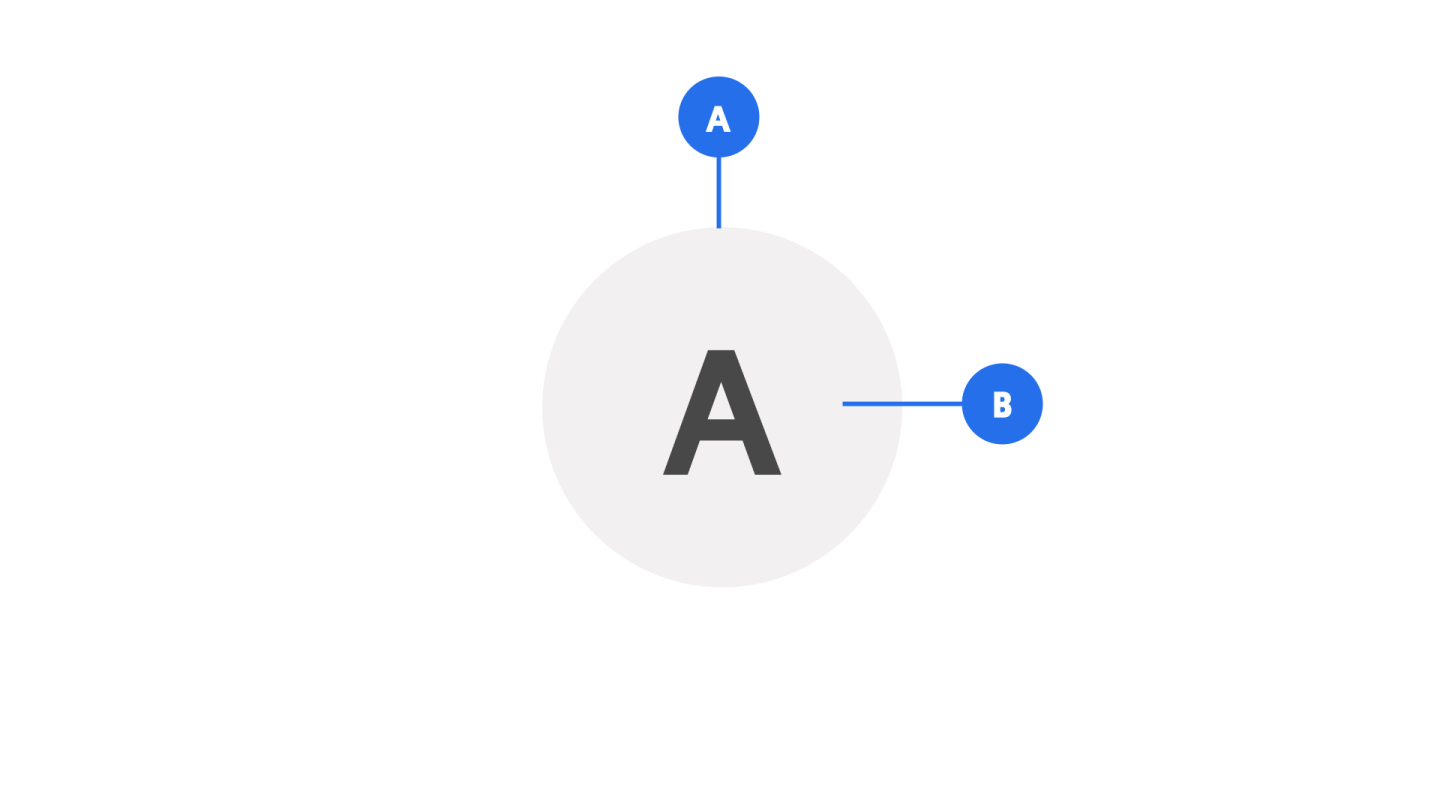
A. Container
B. Text
Image
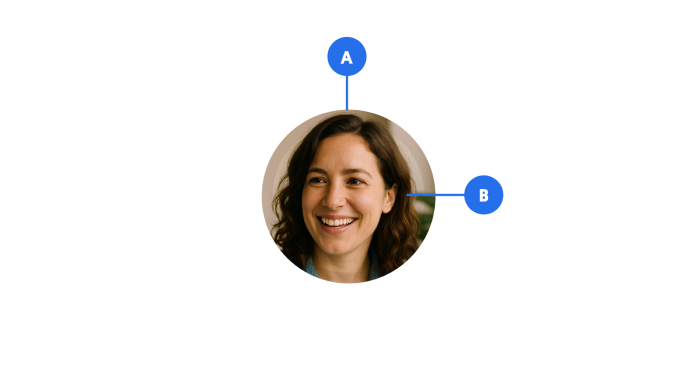
A. Container
B. Image
Signed-out
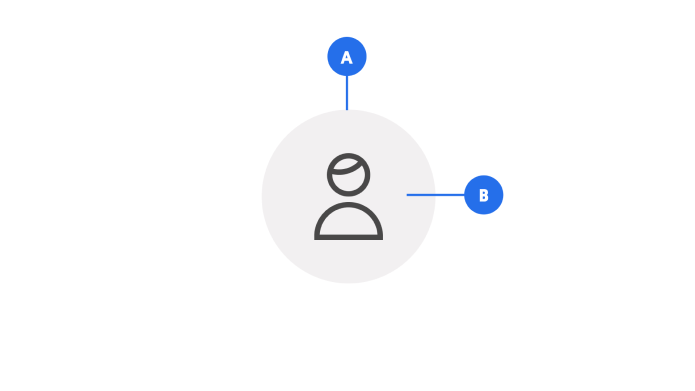
A. Container
B. Icon
Behaviour
The Avatar component dynamically adapts its appearance based on the user's state and the provided data.
Placement
The Avatar component is designed to be versatile and adaptable, ensuring it can be effectively integrated into various layouts and contexts.
Avatar with Badges
The Avatar component can be enhanced with badges to provide additional context or status information about the user or entity it represents. Badges are typically displayed as a small, circular indicator overlaid on the Avatar in the top right corner.
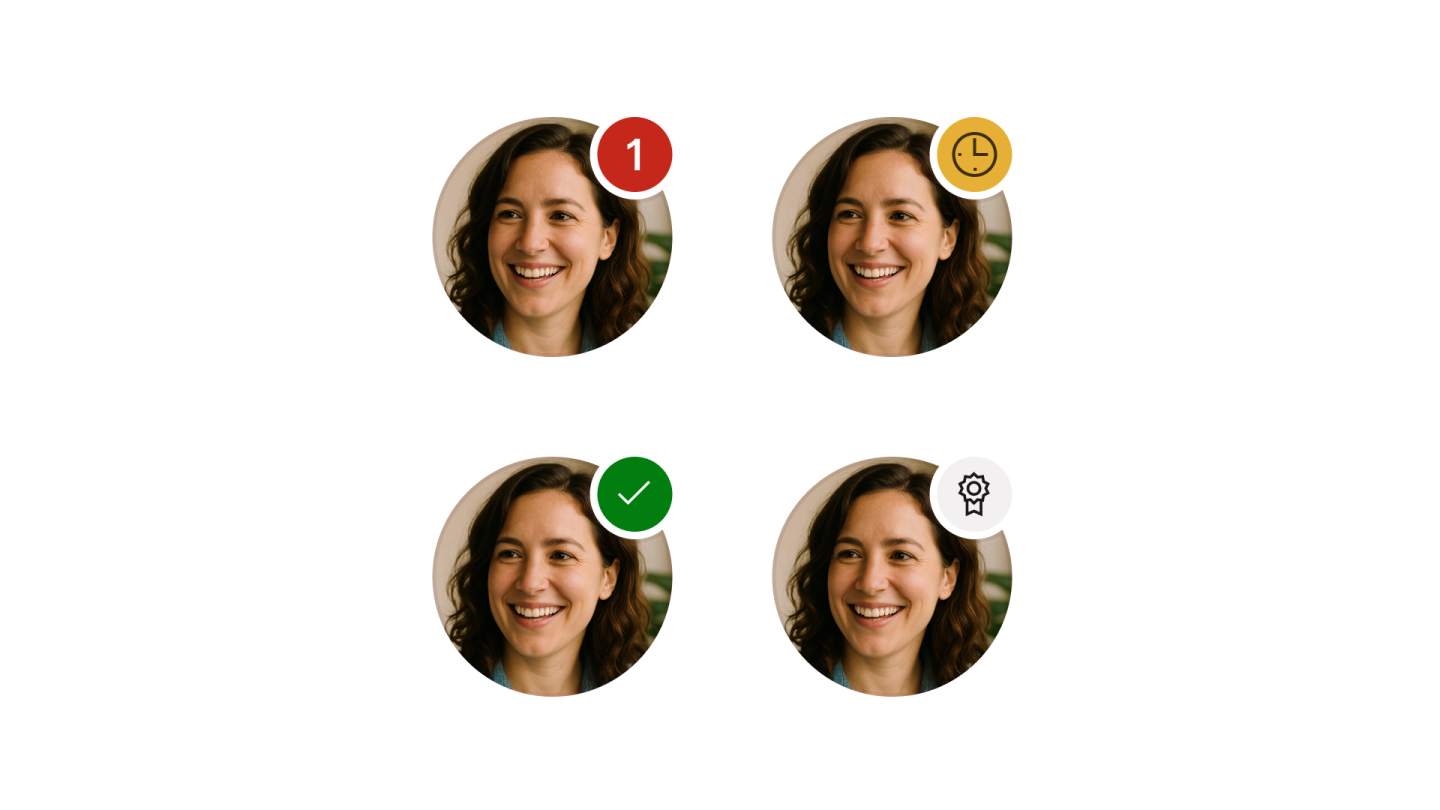
These badges are available in three distinct colours, each representing a specific purpose:
-
Important (Red): Used to highlight critical or urgent information that requires immediate attention.
-
Attention (Yellow/Orange): Indicates a warning or a situation that needs acknowledgement but is less urgent than "Important."
-
Success (Green): Represents positive or confirmed statuses, such as "online" or "completed."
-
Neutral (Grey): Represents a less important status or add-on.
Examples
Signed out
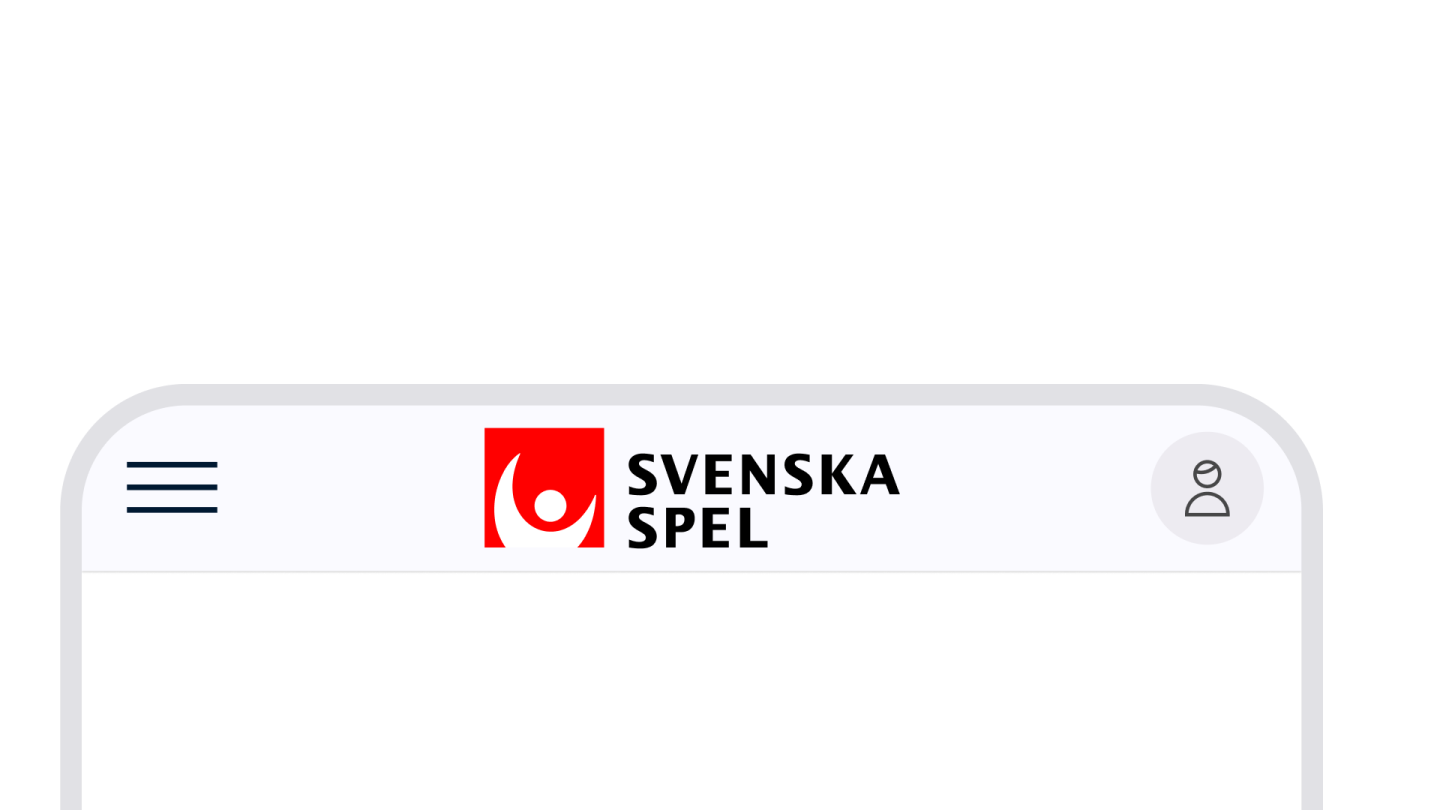
Signed-out avatar used to indicate a sign-in call to action.
Text
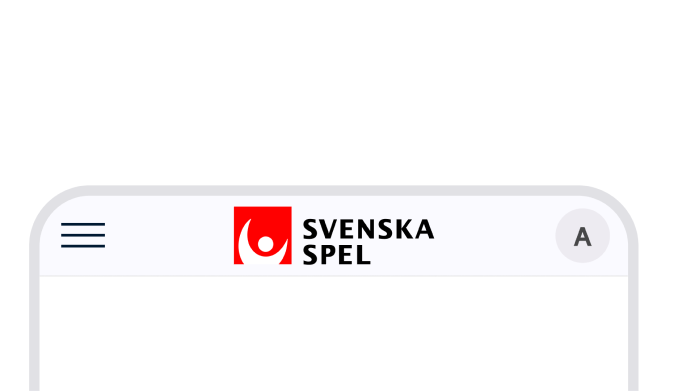
The "Signed-in Avatar" represents a logged-in user. By default, the Avatar displays the first letter of the user's name.
Image
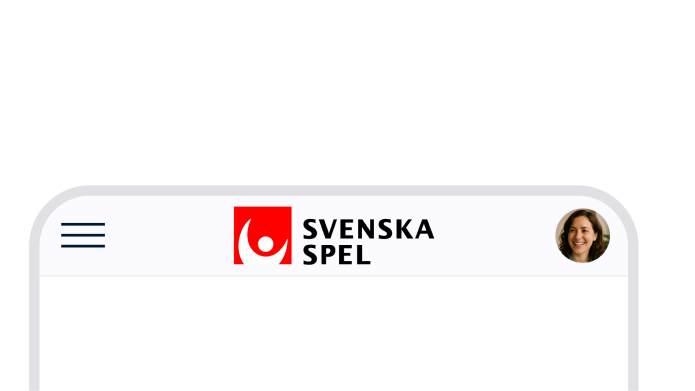
If the user has actively changed the Avatar to an image, the image will be shown instead.
Best practices


Content
Badges with text should be short and descriptive. Aim for one or two words that describe a state. Don’t try to include too much.