Components
NoticeUsage
Use notice when the user needs to understand status, risk, or the next step without leaving their flow.
Always choose the smallest notice level that gives the right visibility, and let status reinforce the message rather than carry it on its own.
Use for
Service updates, account status, and guidance with a clear consequence.
Avoid for
Marketing messages, general tips, or noise without real impact.
Start with
The smallest level that is still clearly visible to the right audience.
Anatomy
All notice levels share the same core parts, but surface area and priority differ.
This keeps the content consistent whether a notice is shown as a system notice, at page level, in a section, or inline.
System notice
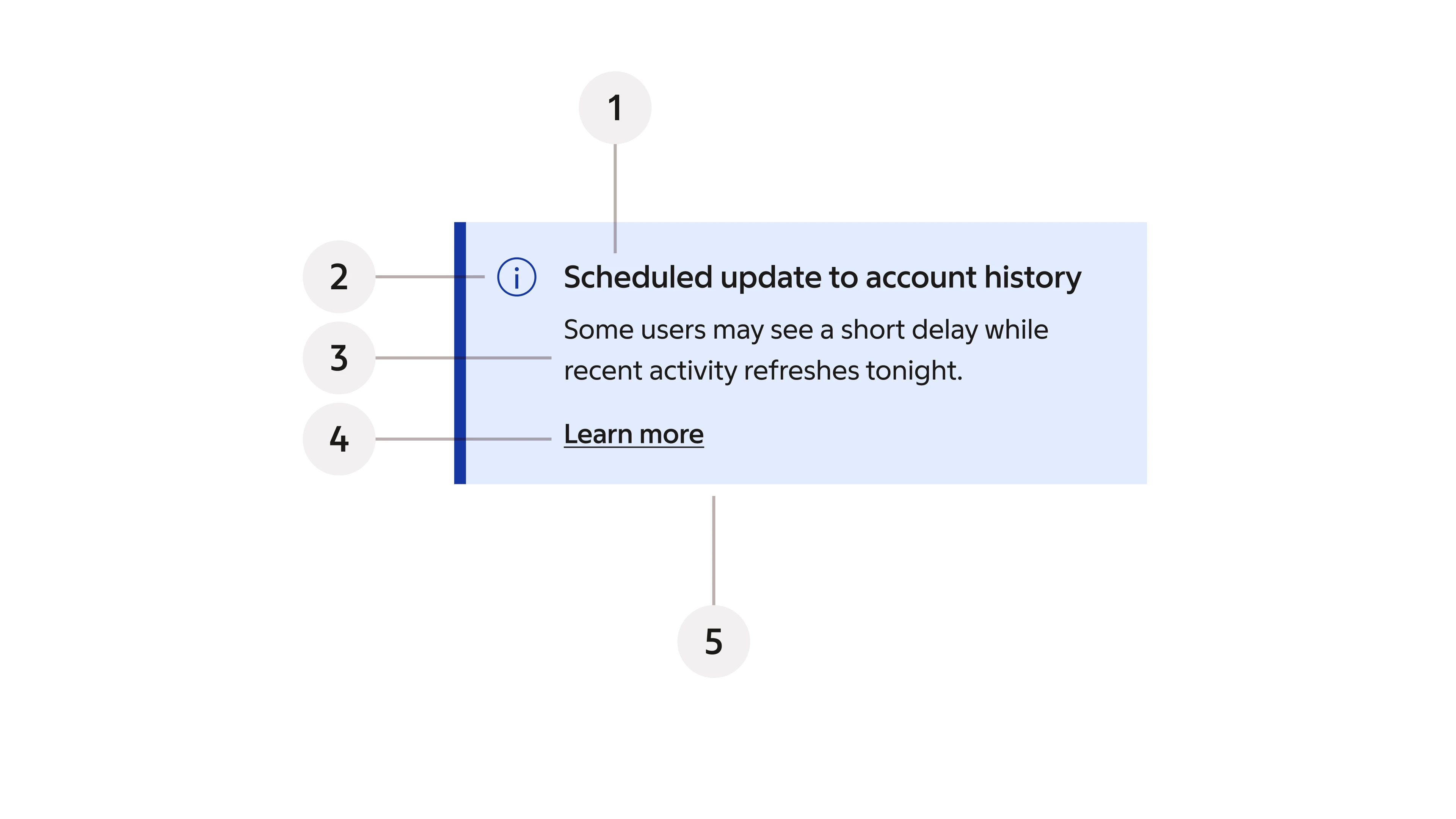
- Title – a short heading that quickly summarises the situation.
- Icon – reinforces the selected status and follows the notice semantics.
- Body copy – explains what happened and what it means for the user.
- Action – an optional link or CTA when the user can act directly.
- Container – the surface that holds the notice content.
System notice specs
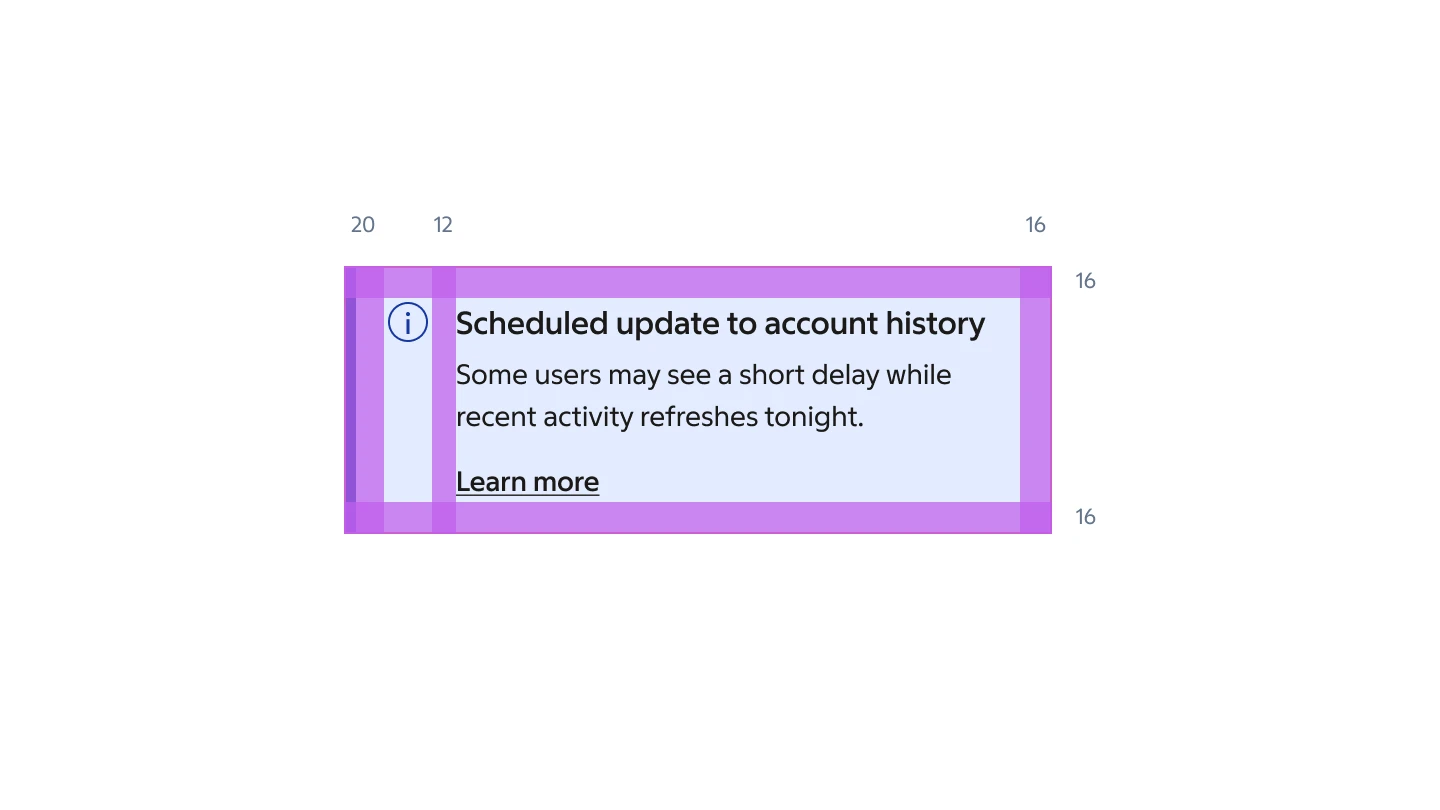
- Padding 16 / 16 / 16 / 20 px (top/right/bottom/left)
- Icon gap 12 px
- Content gap 12 px
- Title/body gap 4 px
Page notice
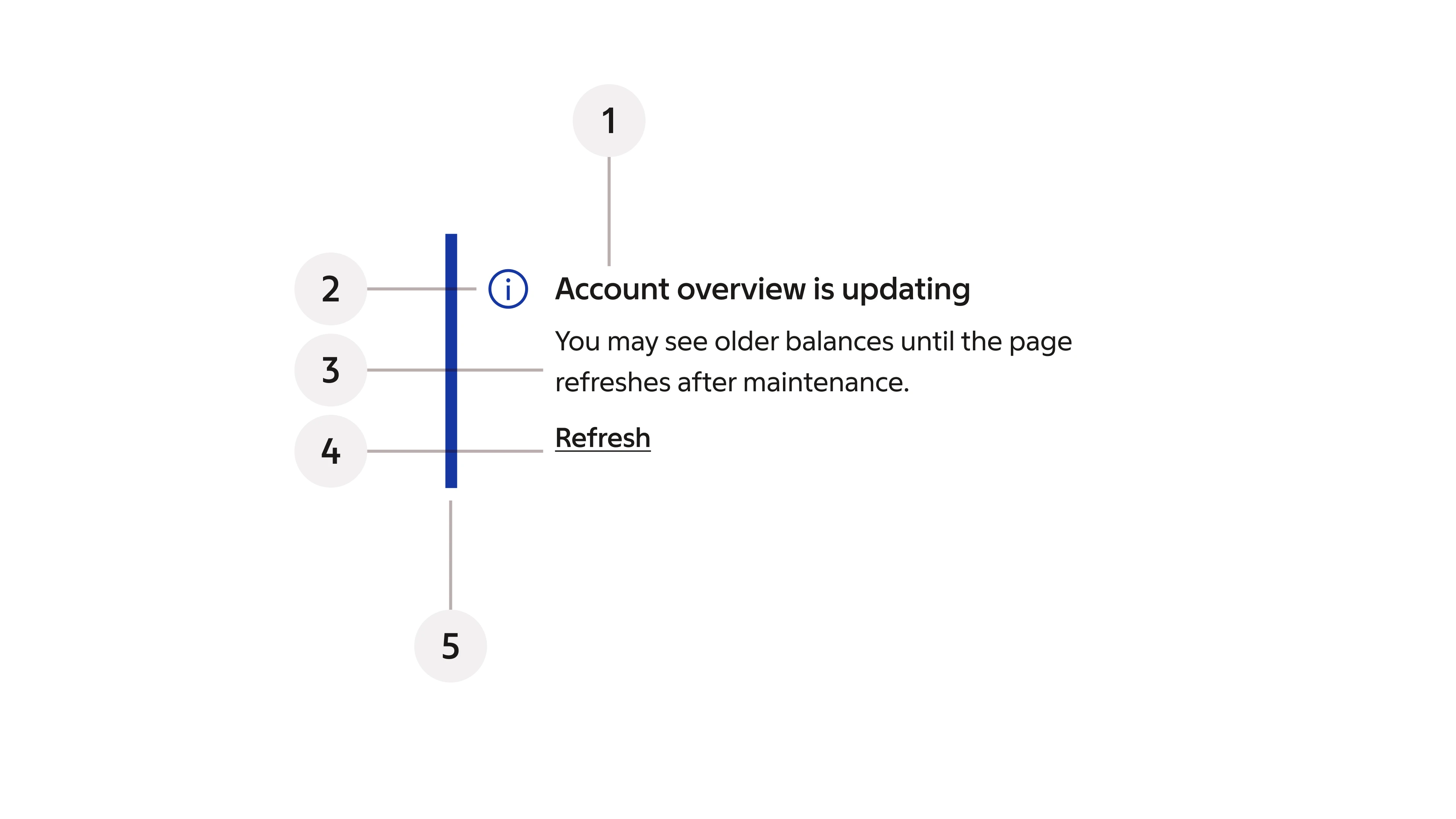
- Title – a short heading that quickly summarises the situation.
- Icon – reinforces the selected status and follows the notice semantics.
- Body copy – explains what happened and what it means for the user.
- Action – an optional link or CTA when the user can act directly.
- Visual status indicator (stroke).
Page notice specs
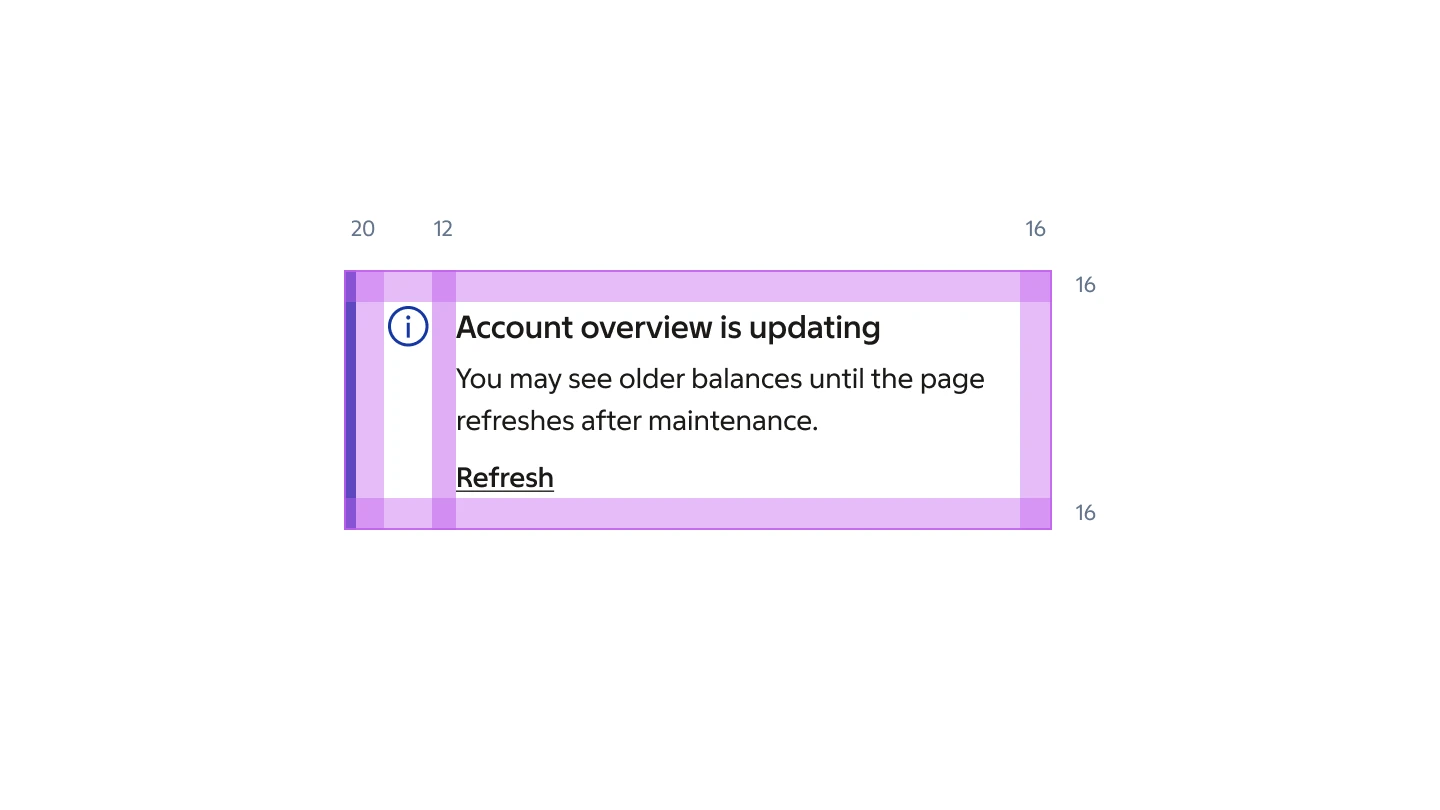
- Padding 16 / 16 / 16 / 20 px (top/right/bottom/left)
- Icon gap 12 px
- Content gap 8 px
- Title/body gap 4 px
Section notice
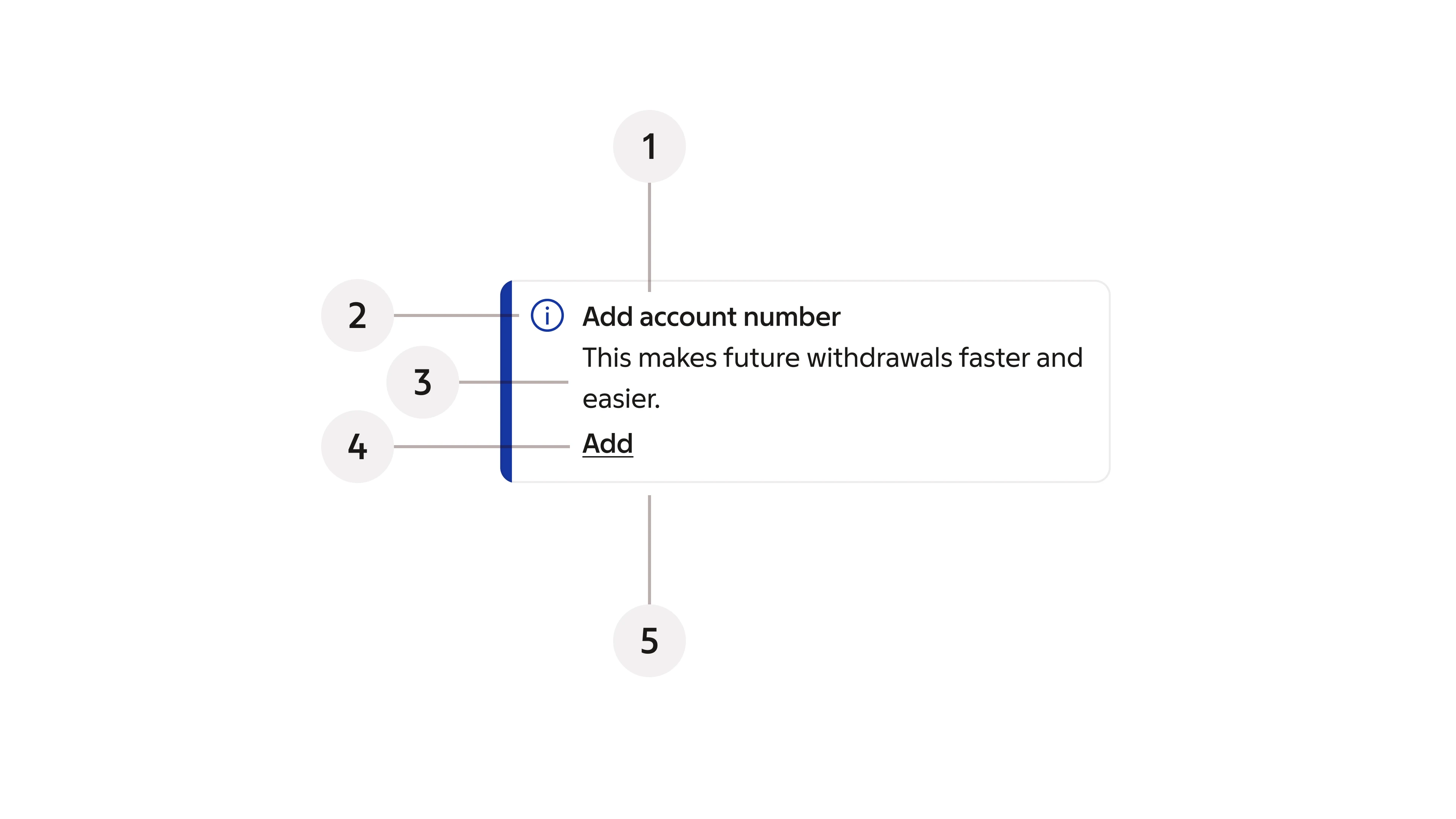
- Title – a short heading that quickly summarises the situation.
- Icon – reinforces the selected status and follows the notice semantics.
- Body copy – explains what happened and what it means for the user.
- Action – an optional link or CTA when the user can act directly.
- Container – the surface that holds the notice content.
Section notice specs
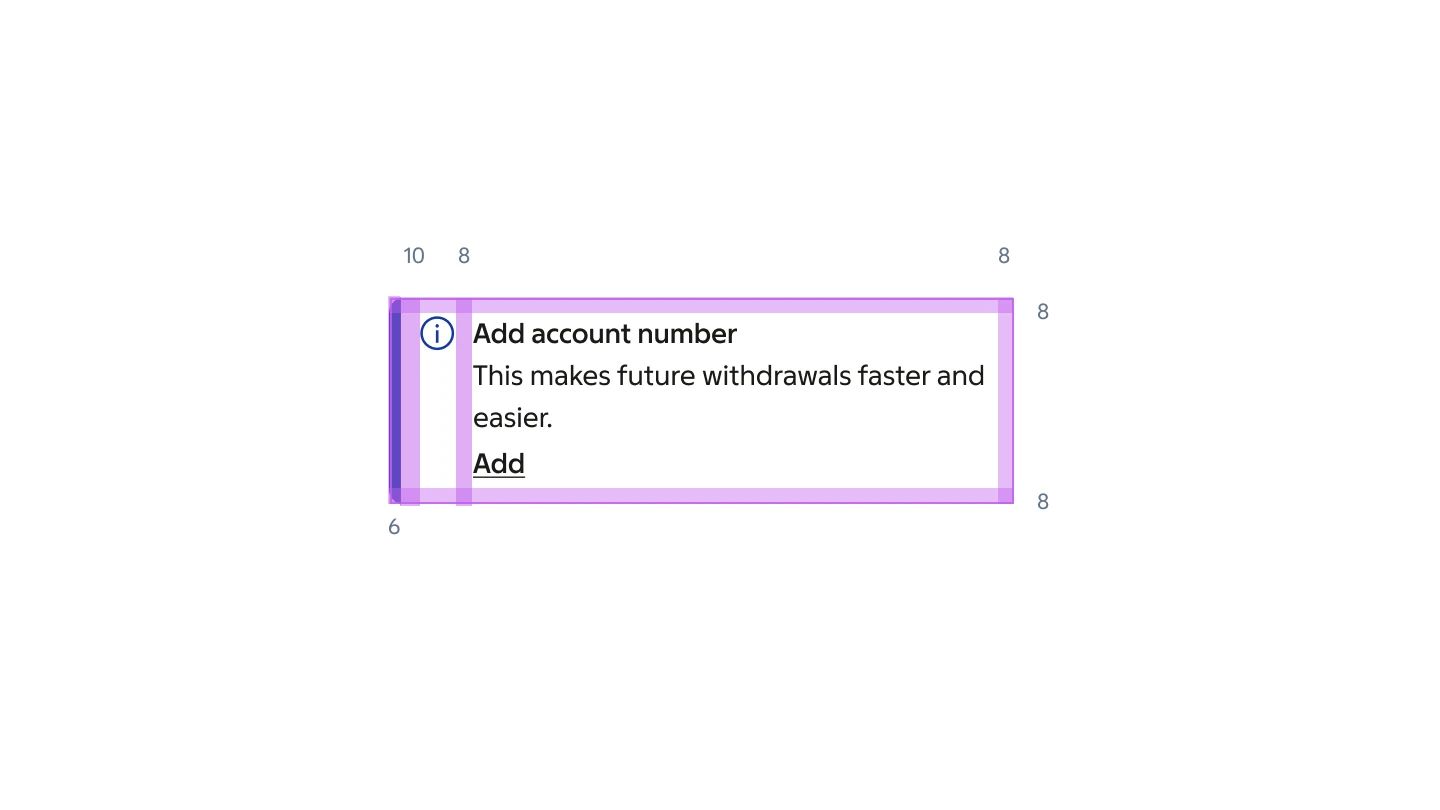
- Padding 8 / 8 / 8 / 10 px (top/right/bottom/left)
- Icon gap 8 px
- Content gap 4 px
Inline notice
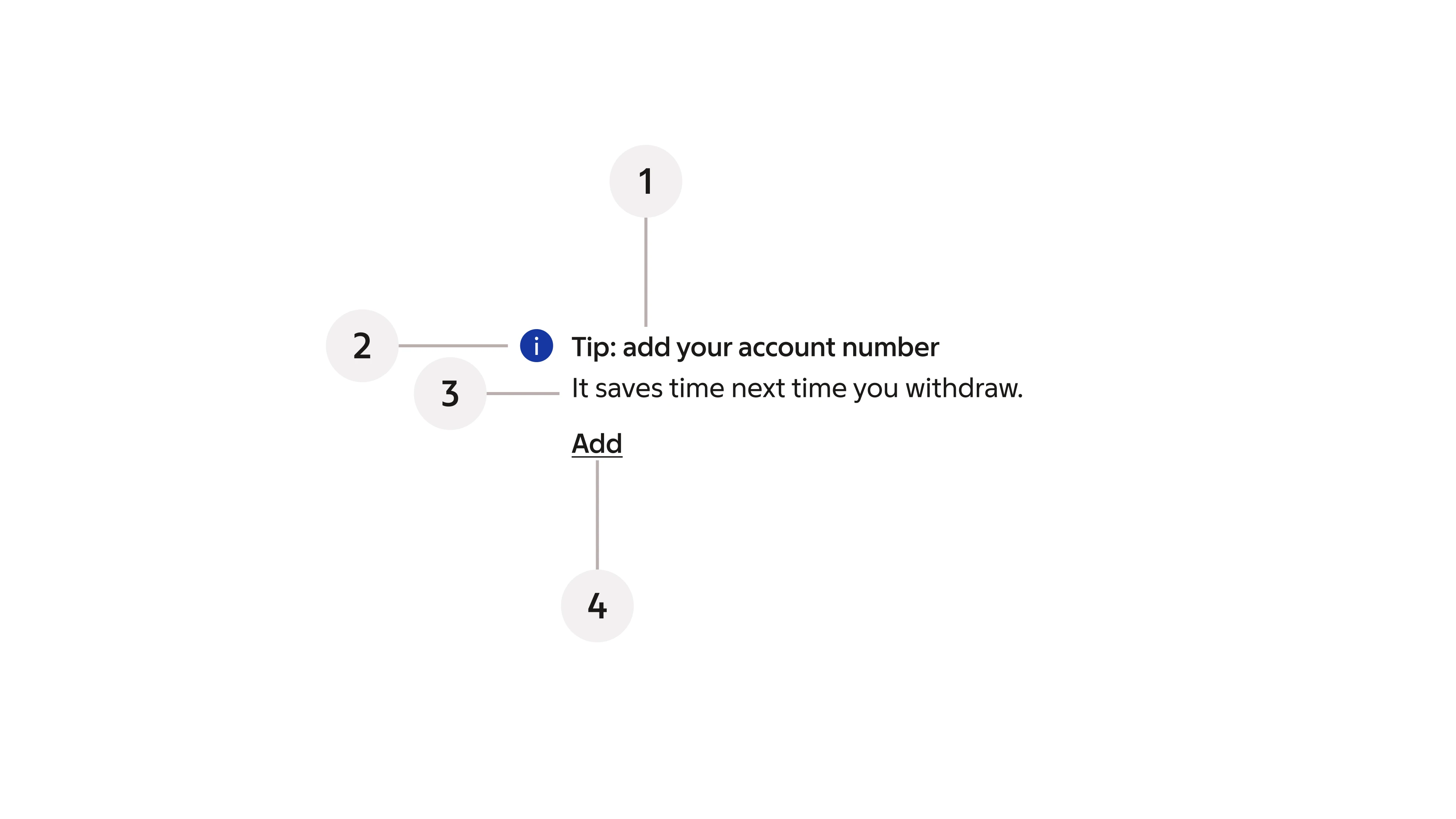
- Title – a short heading that quickly summarises the situation.
- Icon – reinforces the selected status and follows the notice semantics.
- Body copy – explains what happened and what it means for the user.
- Action – an optional link or CTA when the user can act directly.
Inline notice specs
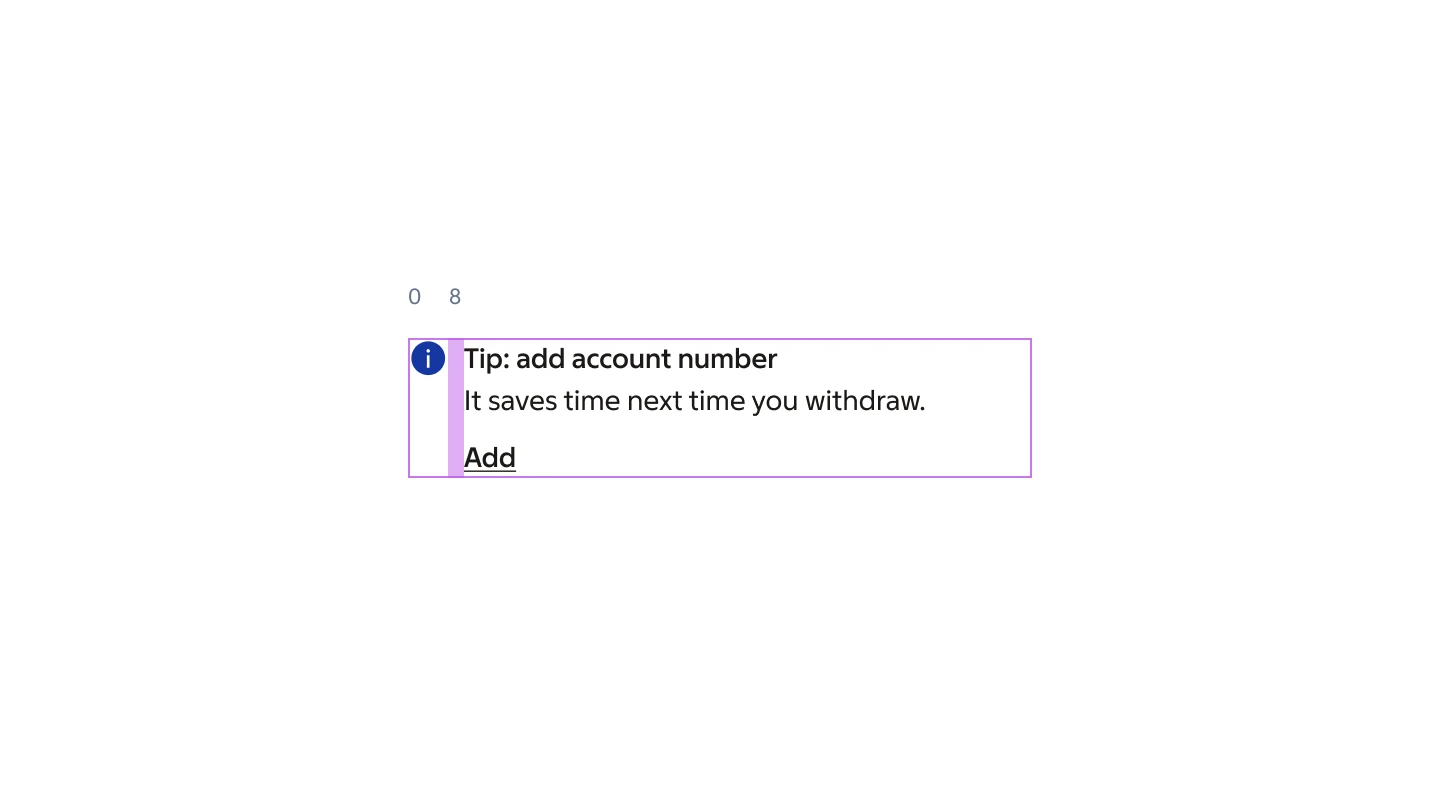
- Outer padding 0 px
- Icon gap 8 px
- Stack gap 0 px
Best practice
Good notices are short, close to the context, and show a clear way forward when one exists. When there is no actionable path, the notice should acknowledge the situation and set expectations.
The content should help the user move forward, not compete with the rest of the interface. In cases where no workaround is available — such as a service outage — be honest, set expectations, and avoid forcing a call-to-action that leads nowhere.
Three principles
Use notice to explain the situation quickly and clearly.
Lead with the consequence
Start with what happened and what it means for the user.
Place it close to the context
Place the notice close to the area or step it relates to.
Avoid stacking
Show one notice at a time and only replace it when the priority increases.
Escalate correctly
Be clear about the next step
Appearance
Choose the level based on how much of the experience the message affects and how many users need to see it.
System
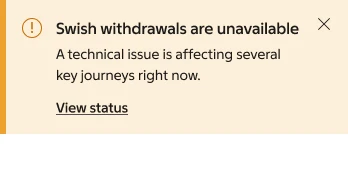
Affects the wider product or several key flows at once.
Page
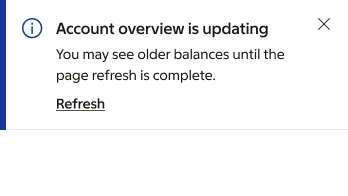
Applies to all content on the current page.
Section
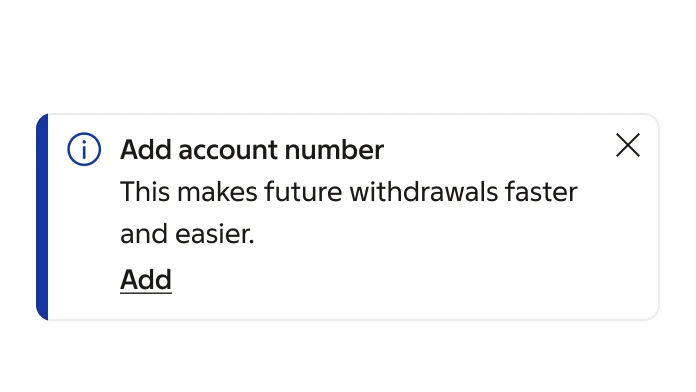
Applies to a module, panel, or step in the flow.
Inline
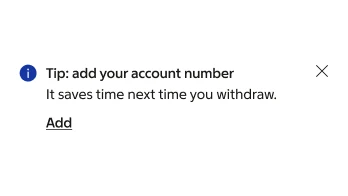
Applies to a field, a row, or a small area close to the action.
Status or notice levels
Semantic colours direct users and clearly convey messages.
Information
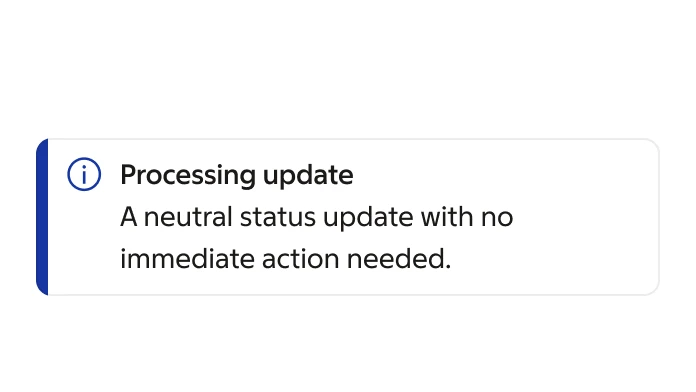
Neutral guidance or a status update.
Success
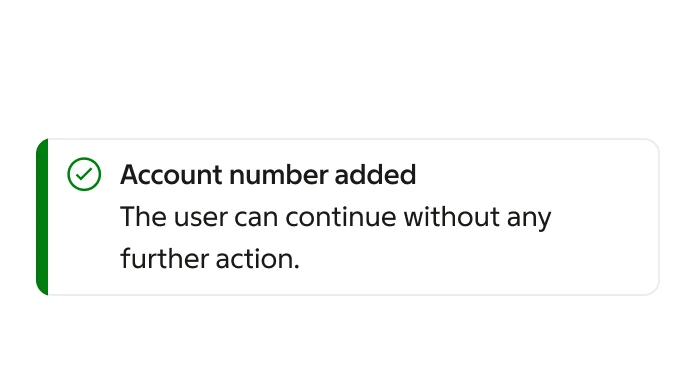
Confirms that something worked or has been resolved.
Attention
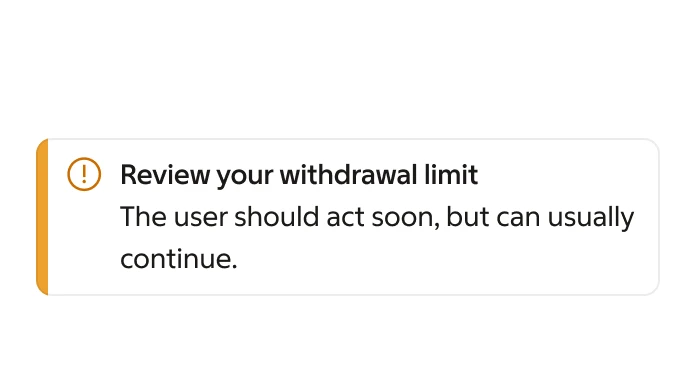
The user needs to react soon but can often continue.
Critical
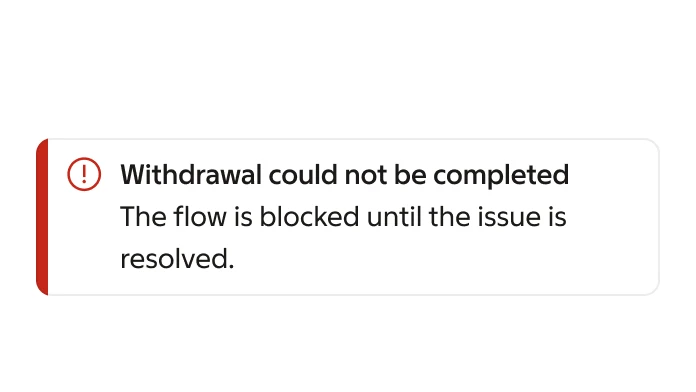
A blocking error or a larger disruption that requires clarity.
Accessibility
Notices communicate status and often require immediate attention, so they must be accessible to all users including those using assistive technology.
Use the right ARIA roles and attributes so screen readers announce notices at the correct urgency without interrupting the user unnecessarily.
ARIA roles and live regions
Match the ARIA role to the notice urgency so assistive technology announces it correctly.
Critical and Attention
Use role='alert' with aria-live='assertive'. The screen reader announces these immediately, interrupting the current task.
Information and Success
Use role='status' with aria-live='polite'. The screen reader announces these at the next pause without interrupting.
Focus management
Move focus to the notice only when the user must act before continuing. For non-blocking notices, let focus stay where it is.
Behaviour
Define whether a notice stays visible, can be dismissed, or disappears on its own so that the user always knows how to move forward.
How a notice enters and exits the view should match its urgency. Critical notices persist; informational ones can be dismissed or auto-close.
Dismissibility
Information and Success notices include a close button. Attention and Critical notices persist until resolved. For brief success messages ("Saved", "Copied"), use the Snackbar instead.
Visibility
All statuses stay visible until manually dismissed or resolved. For brief, transient confirmations that auto-dismiss (5–8 s), use the Snackbar instead.
Animation
System and Page notices slide in from the top. Section and Inline notices fade in. Exit animations mirror entry direction. Critical notices appear instantly.
Responsive behaviour
Notices should remain readable and actionable across all viewport sizes without competing for space.
On narrow screens the notice spans the full width. Action link is stacked below body.
Desktop and tablet
System notices span the full viewport width. Page notices match the content area width. Section and Inline notices fill their parent container. Actions always stack below the body copy.
Mobile
All notices span full width. Actions always stack below the body copy. System notices remain fixed at the top. Padding scales down to 12 / 12 / 12 / 16 px for System and Page levels.
Content guidelines
Clear, concise copy helps the user understand the situation and act on it. Write for scanning, not reading.
Titles should be under 60 characters. Body copy should be one to two sentences maximum. Always lead with the consequence, then explain the next step.
Write actionable copy
Keep titles short and specific
Placement
Where a notice sits in the layout determines how quickly the user sees it and how much it interrupts their flow.
Always position the notice at the level where the issue occurs. A broader placement than necessary adds noise; a narrower one risks being missed.
Position each notice level where it has the right visibility for its scope.
System notice
Fixed at the very top of the viewport, above all content and navigation. Spans the full width. Use for platform-wide outages, maintenance windows, or account-level issues that affect every page.
Page notice
Positioned below the page header and above the main content area. Spans the content width. Use for messages that apply to everything on the current page, such as a missing permission or a draft state.
Section notice
Inside the relevant card, panel, or step — at the top of that section. Use when the message only affects one module or step in a multi-part flow.
Inline notice
Directly adjacent to the affected element — below a form field, beside a toggle, or next to a row. Use for validation feedback or contextual hints tied to a single control.
Stacking and priority
When multiple notices compete for the same space, follow a clear priority order to avoid overwhelming the user.