Components
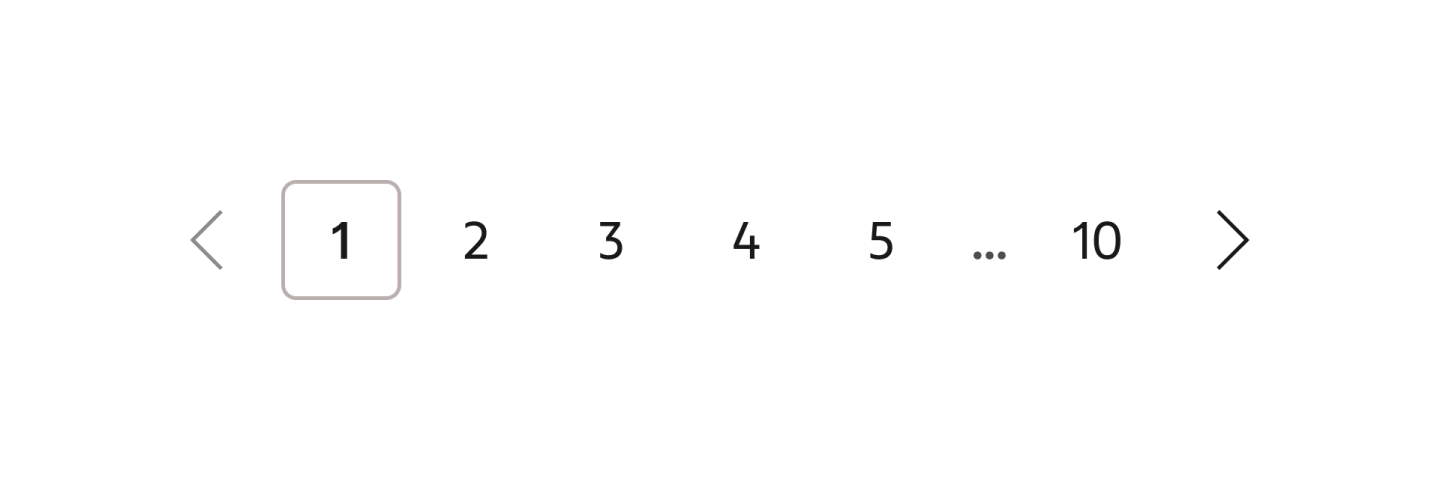
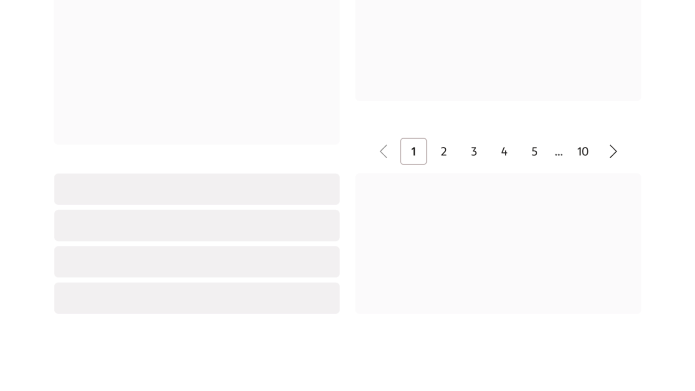
PaginationPagination helps users move through large collections one page at a time. It shows the current page, adjacent pages, and skipped ranges, along with controls for next and previous.
Usage
Use Pagination when a collection is too large to fit in a single view and the user needs a consistent way to navigate through it. Don’t use it when a load-more pattern is the expected interaction.
Formatting
Variants
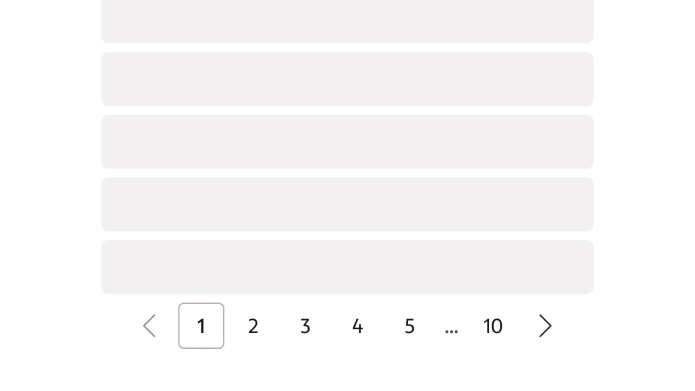
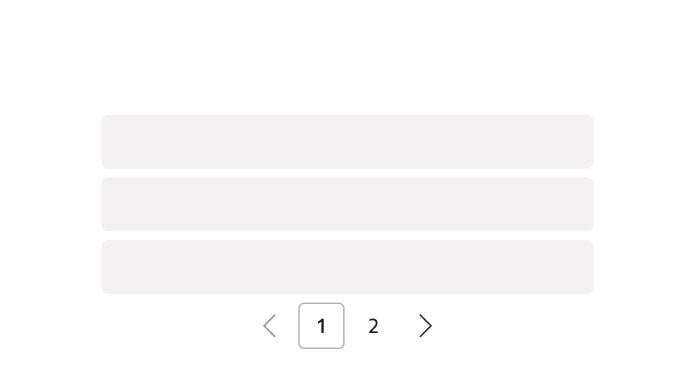
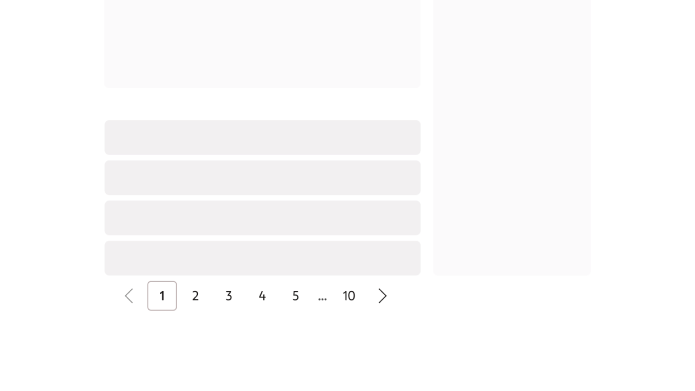
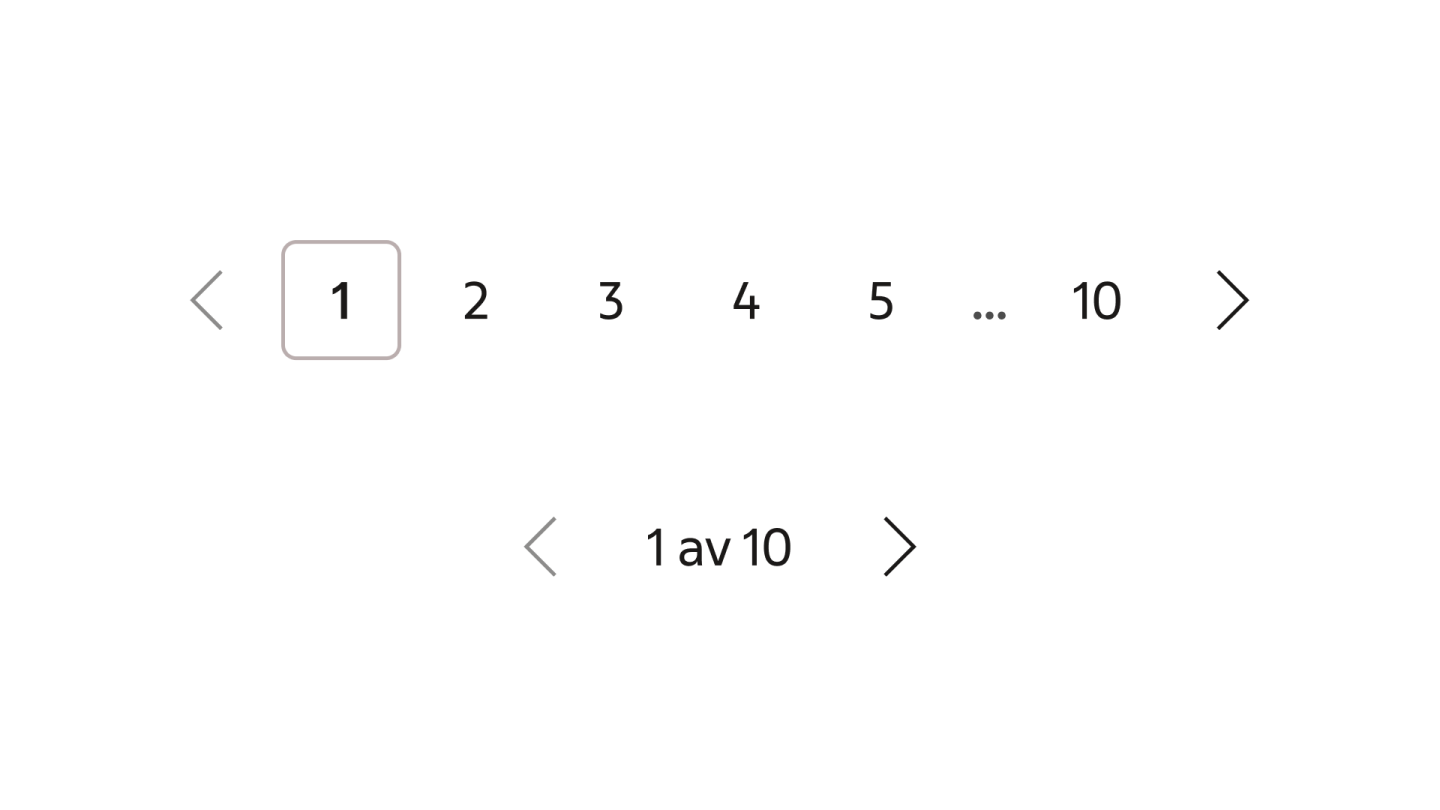
Pagination is available in two variants: Default and Simple. Default gives direct page access and works well when horizontal space is available. Simple uses only previous and next buttons alongside a text indicator, and suits constrained spaces or cases where direct page selection is less important.
Anatomy
The default variant consists of previous and next icon buttons, numbered page buttons, and optional ellipsis symbols for truncated ranges.
Default variant
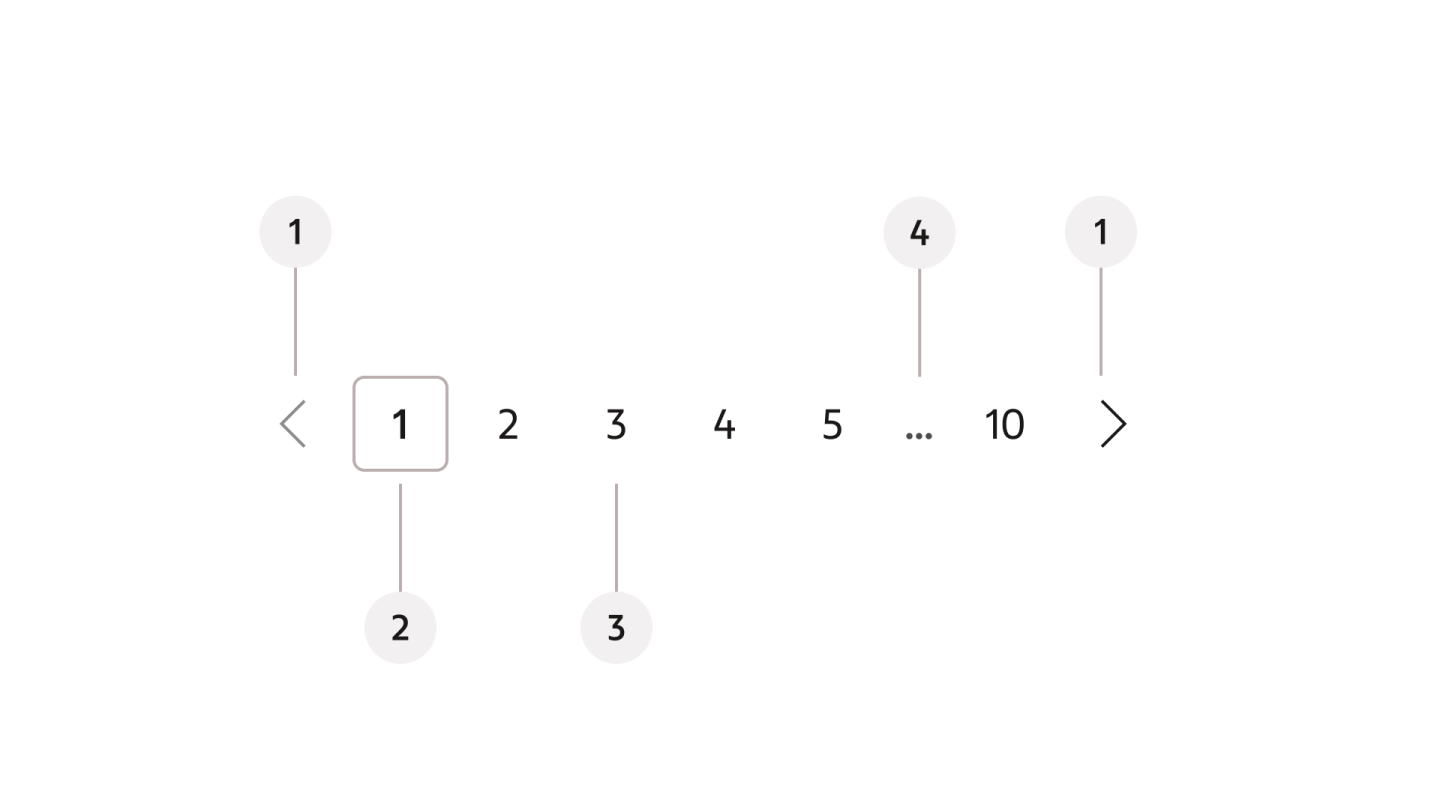
- Previous and next buttons
- Page item (selected)
- Page item (not selected)
- Ellipsis indicating truncated pages
The simple variant consists of previous and next icon buttons and a text area showing the current and total page count.
Simple variant
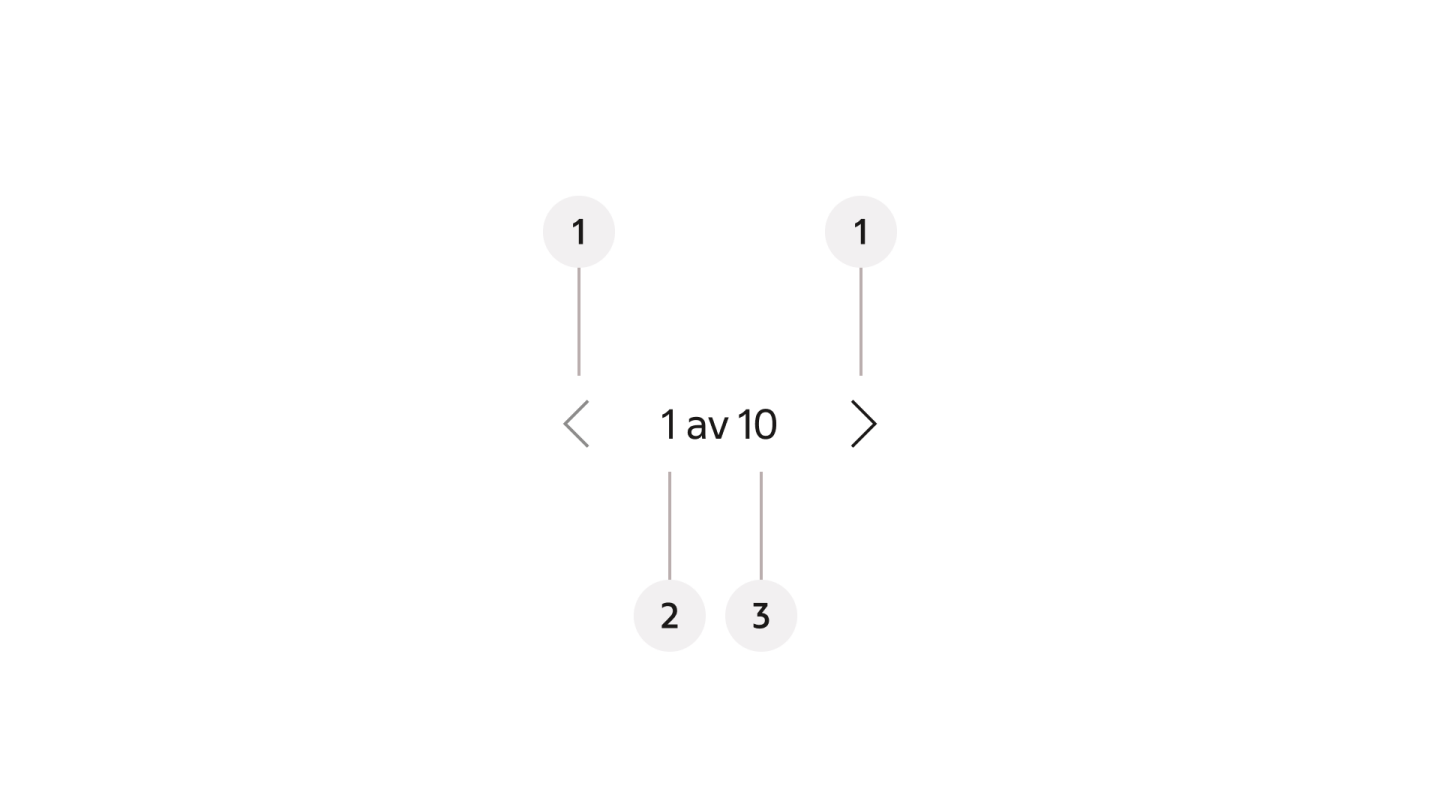
- Previous and next buttons
- Current page
- Total number of pages
Page item states
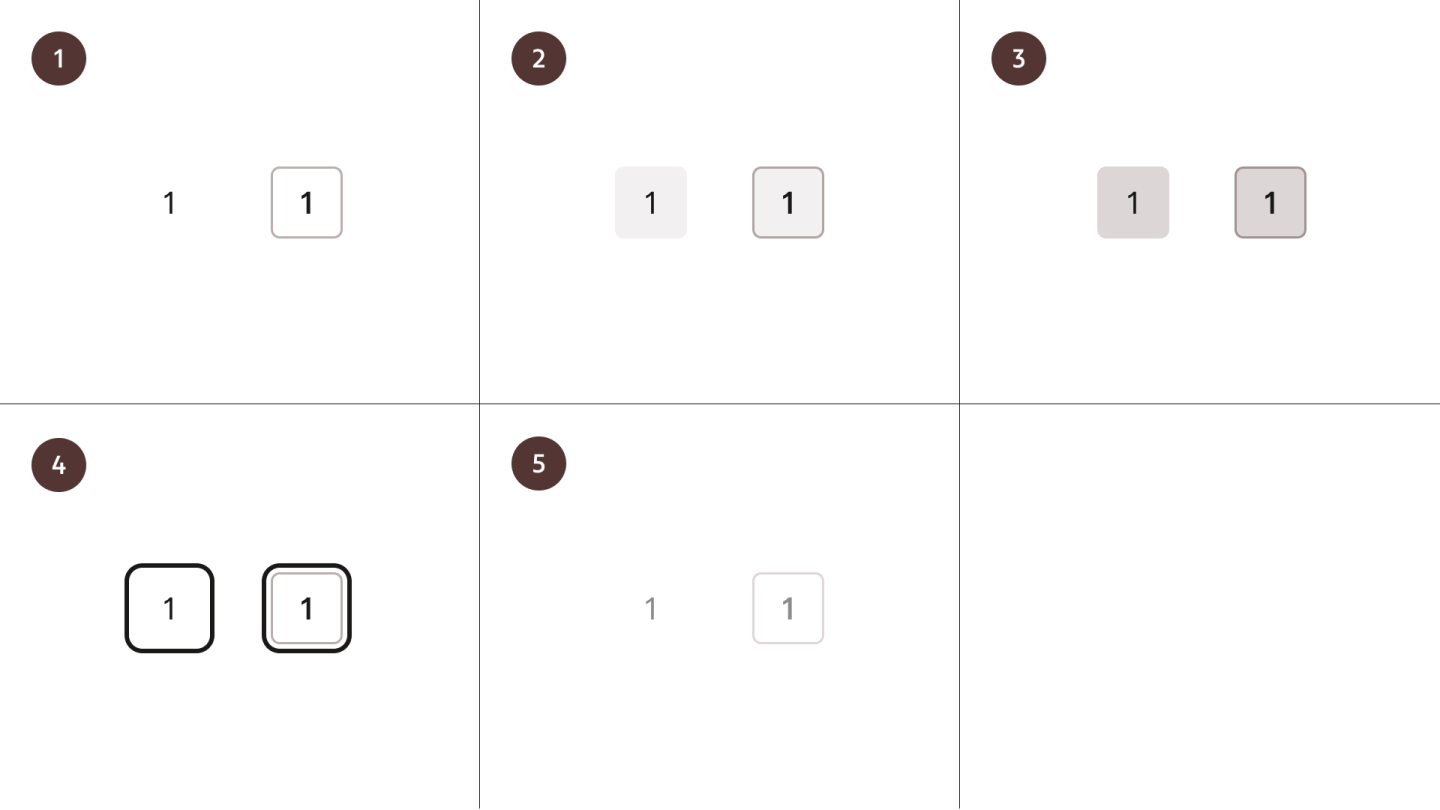
Page item states, in both selected and not selected configuration.
- Default
- Hover
- Pressed
- Focus
- Disabled
Behaviour
Truncation
The default variant displays 7 entries plus previous and next. In this configuration, the component can display the current, first, last, adjacent page(s), along with the ellipsis symbol on both sides.
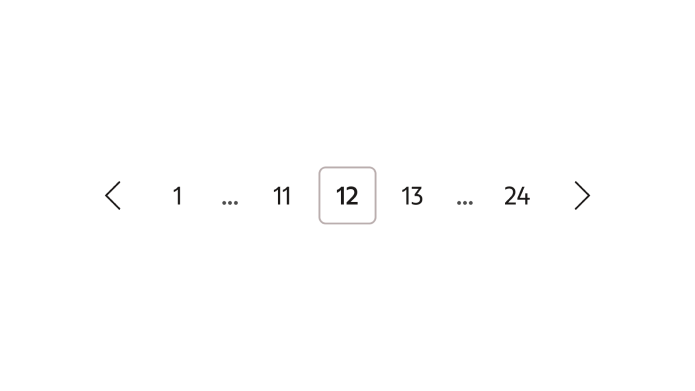
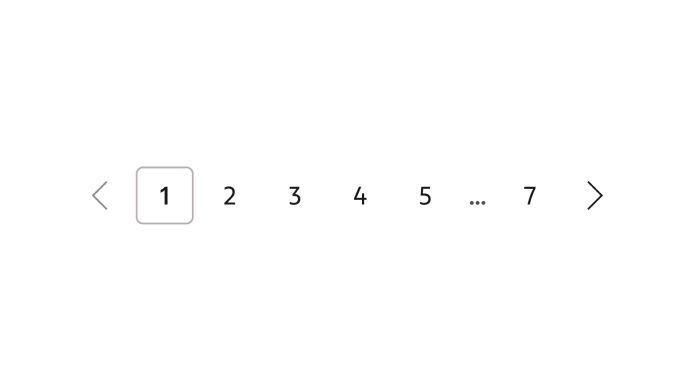
When the number of pages exceeds the available buttons (7), extra ranges are hidden behind an ellipsis. Which ranges are truncated depends on the user’s position. Ideally the current, adjacent, first, and last pages are always visible.
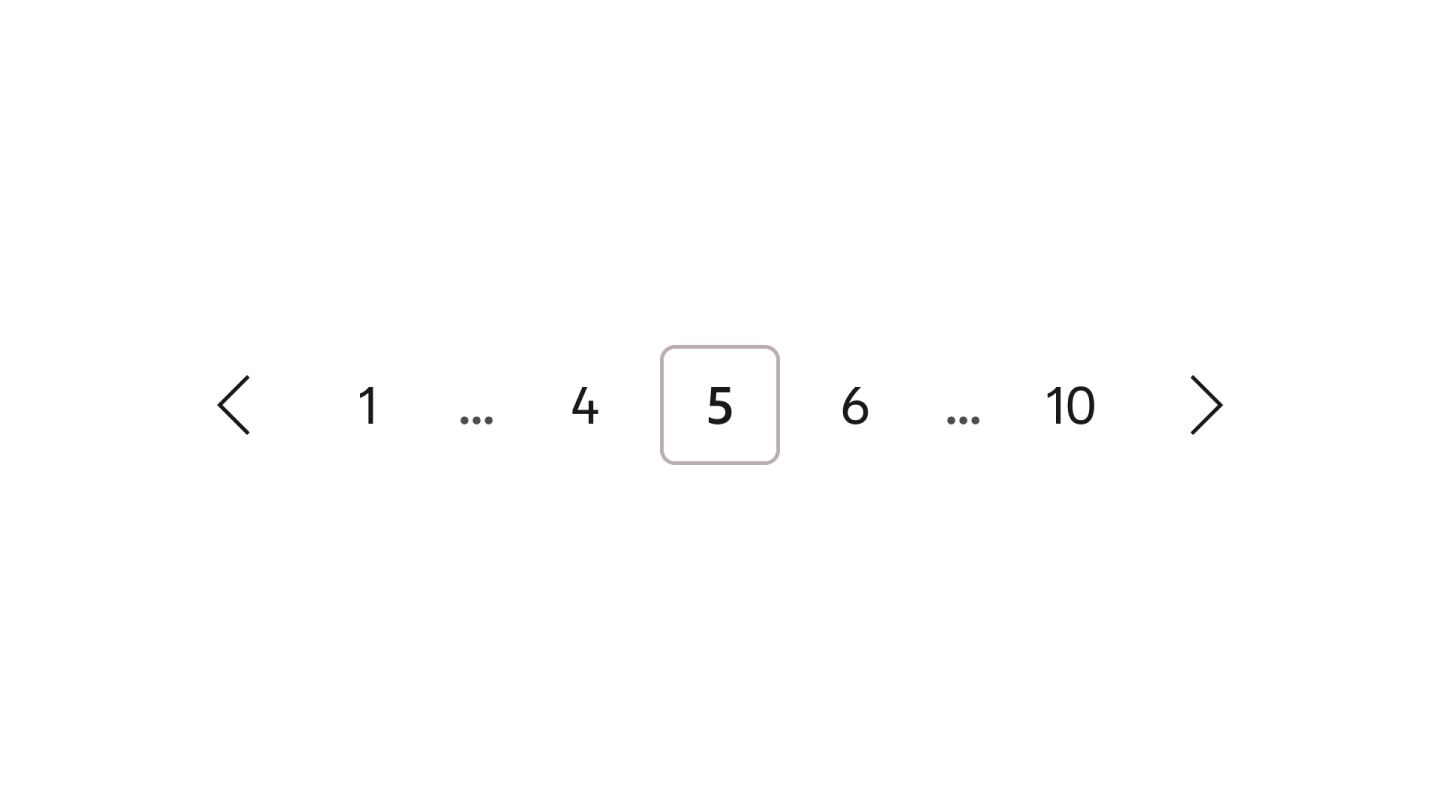
Examples of ranges of pages being skipped in the list, depending on the current position.
Space-constrained layout
When all 7 buttons don’t fit horizontally, the adjacent items can be omitted.
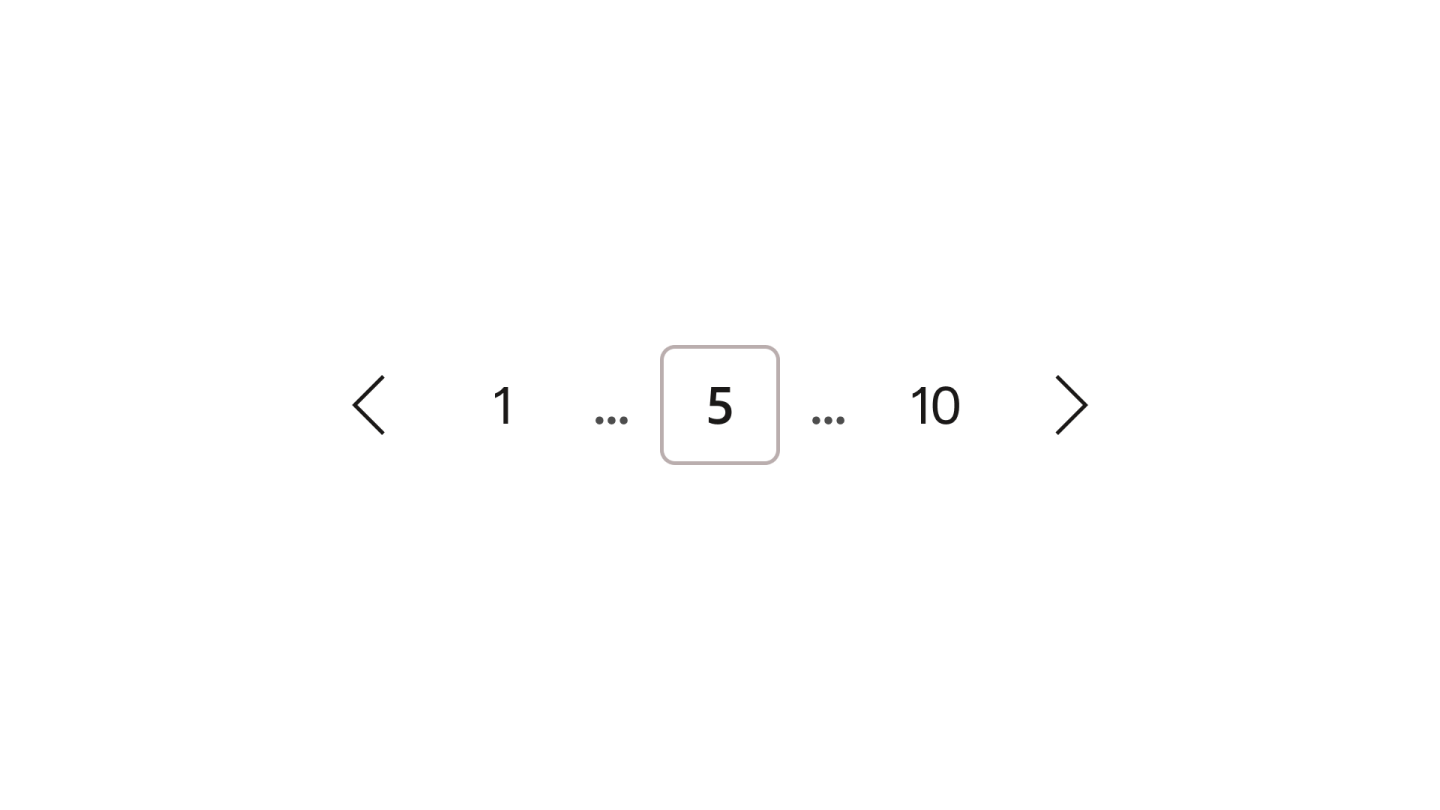
Example showing navigation buttons omitted due to limited horizontal space.