Components
Tabs MenuTabs Menu displays a list of options or items for navigation. It can be used in the top navigation or within your layout to group information and functions within a context.
Usage
Structured Navigation
Organize menu for easy navigation. Group related items. Prioritize commonly accessed ones. Enhance usability.
Hierarchy
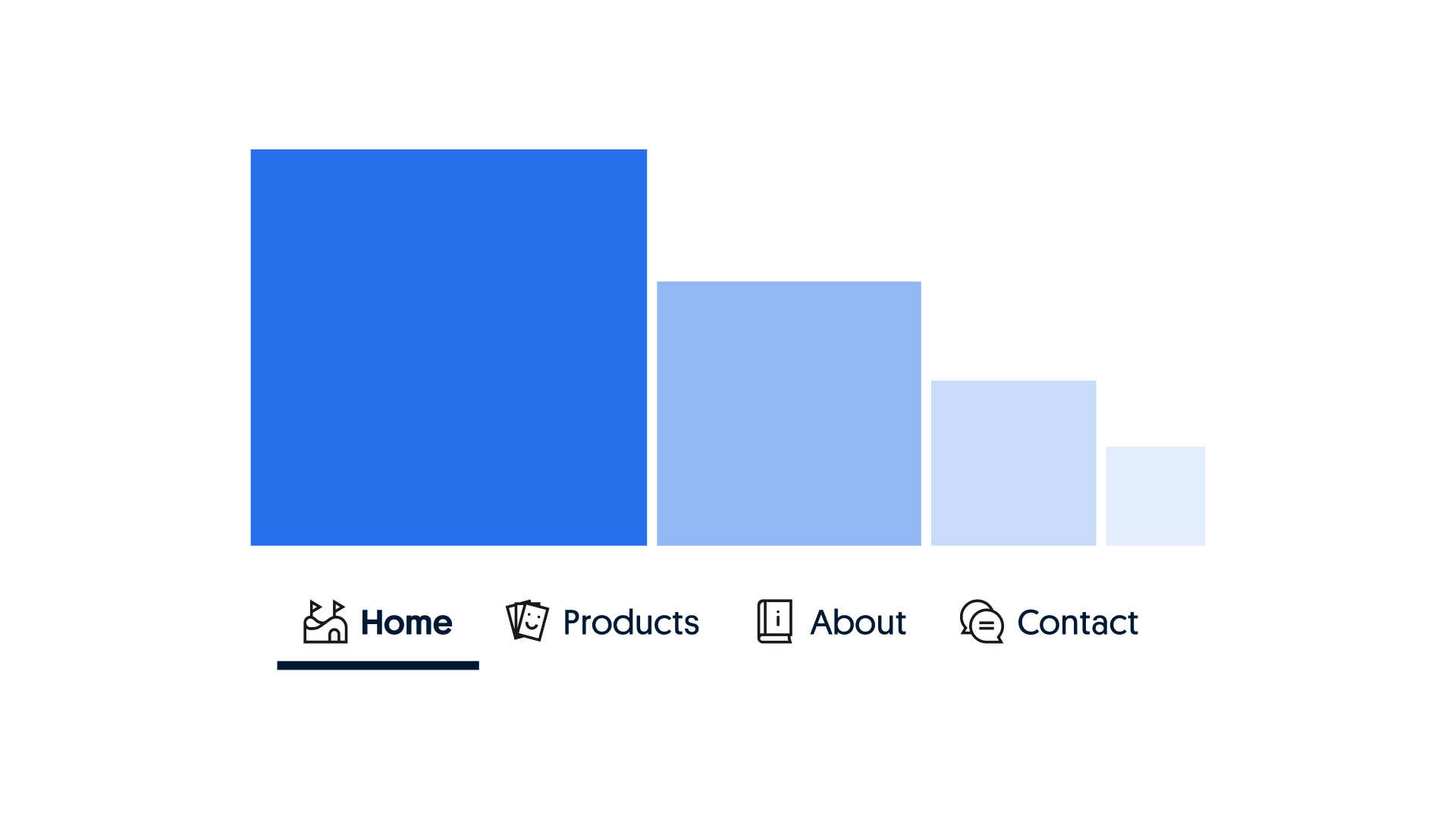
Create a user-centric menu hierarchy. Order items for desired navigation, prioritizing important options at the top. Guide users to key features efficiently.
Navigation
The tabs menu serves as the primary navigation pattern within a location. It is typically implemented at the first level of navigation to switch between core functions or sections. In some cases, it may also be used for more localized navigation for a specific function. When switching between content hierarchically lower than navigation, consider using the tabs component.
First level navigation
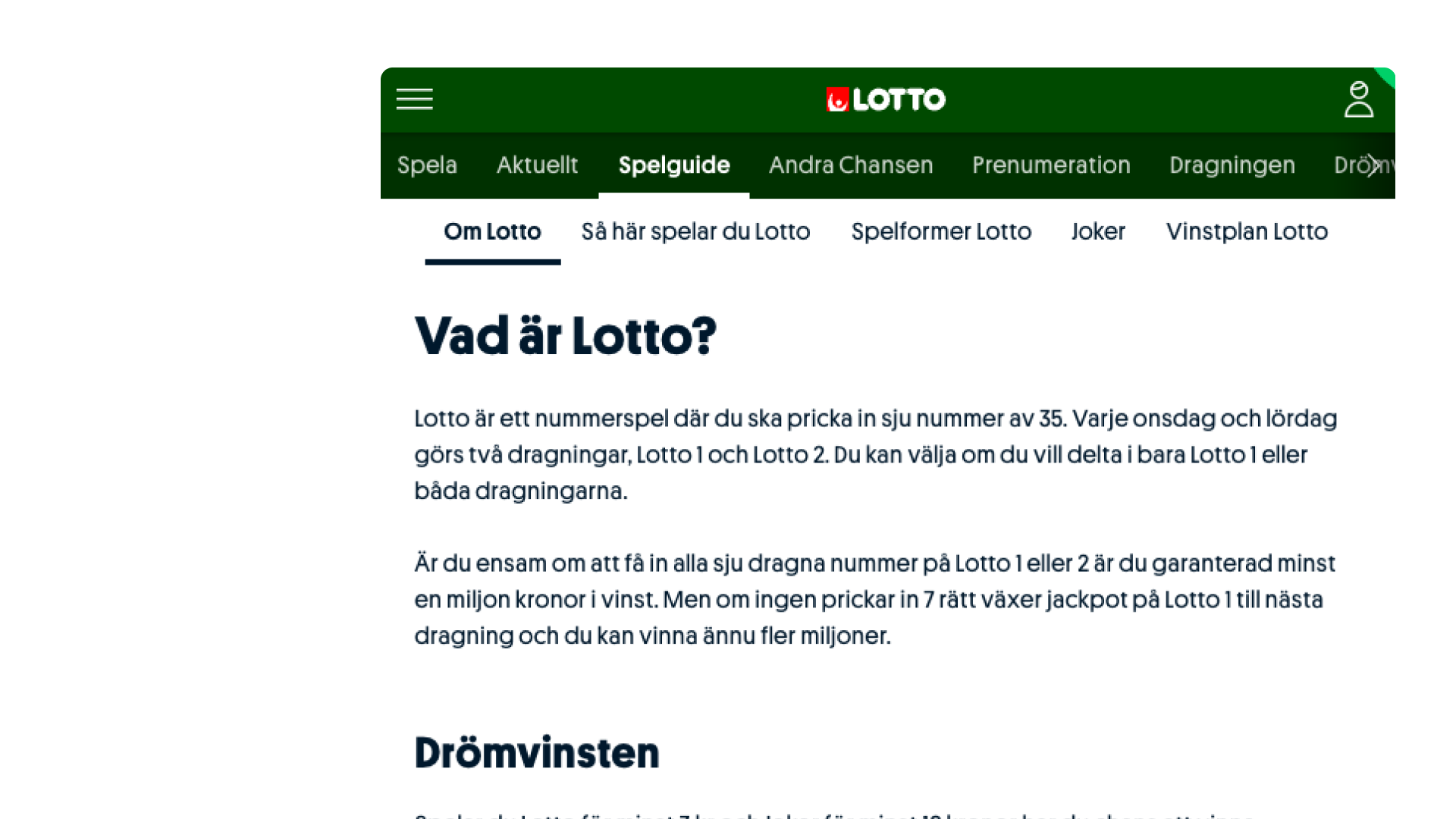
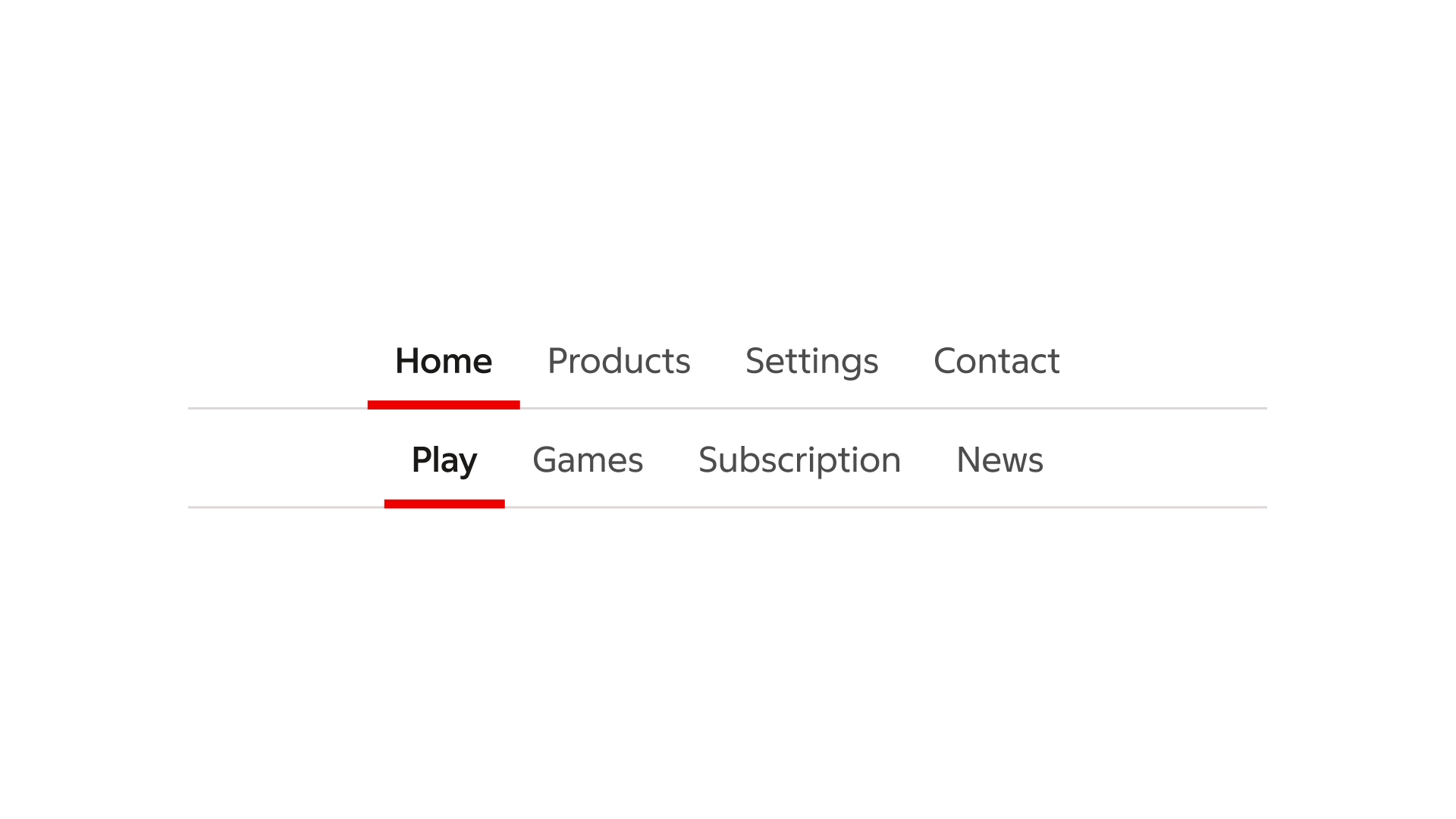
Example of the tabs menu used to facilitate navigation between primary destinations within the Lotto product.
Navigation within context
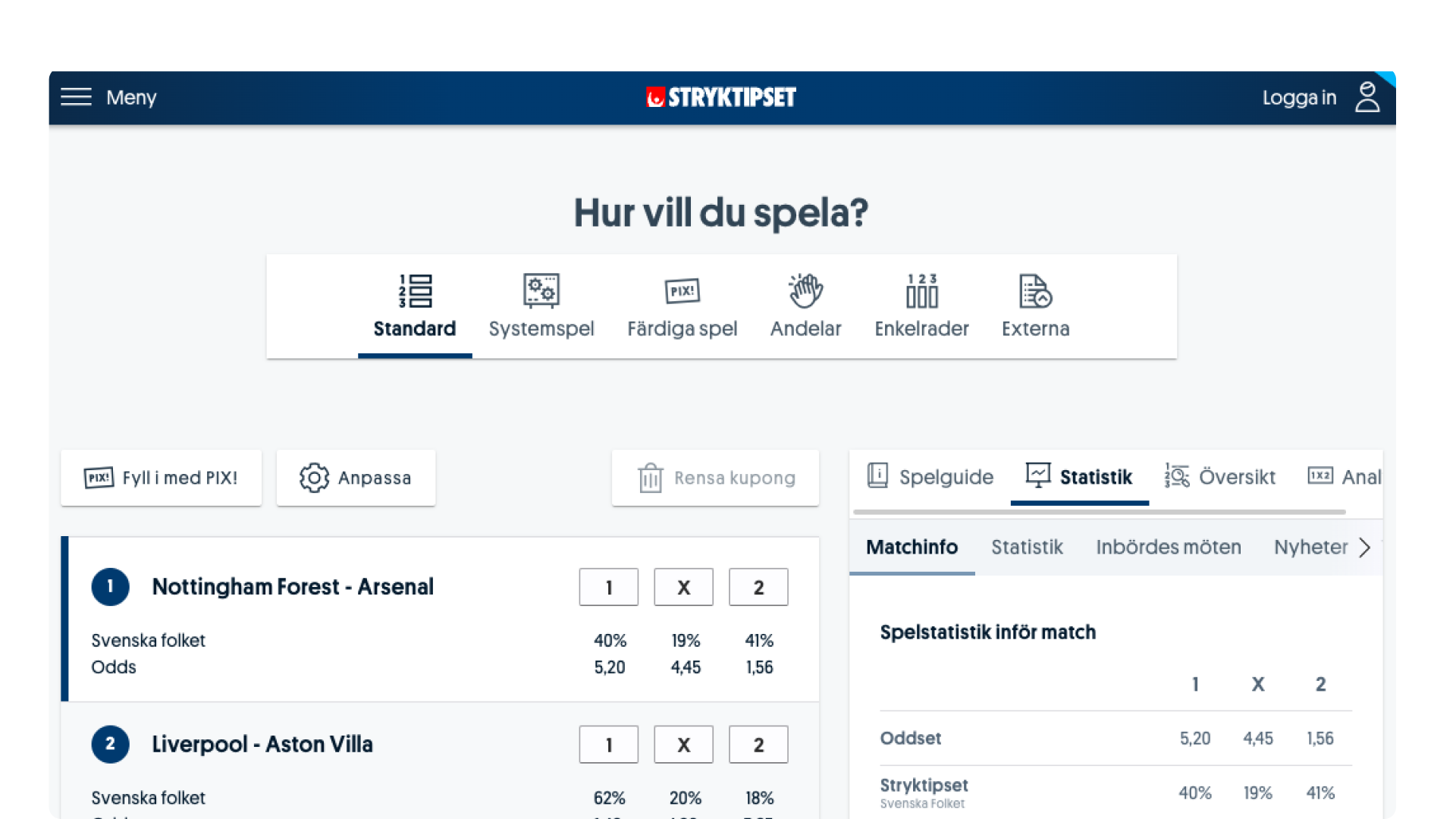
Example where in addition to primary navigation within Stryktipset (“Hur vill du spela?”), the tabs menu is used to navigate between a guide, statistics etc. within a limited context inside a side panel.
Content
Formatting
Anatomy
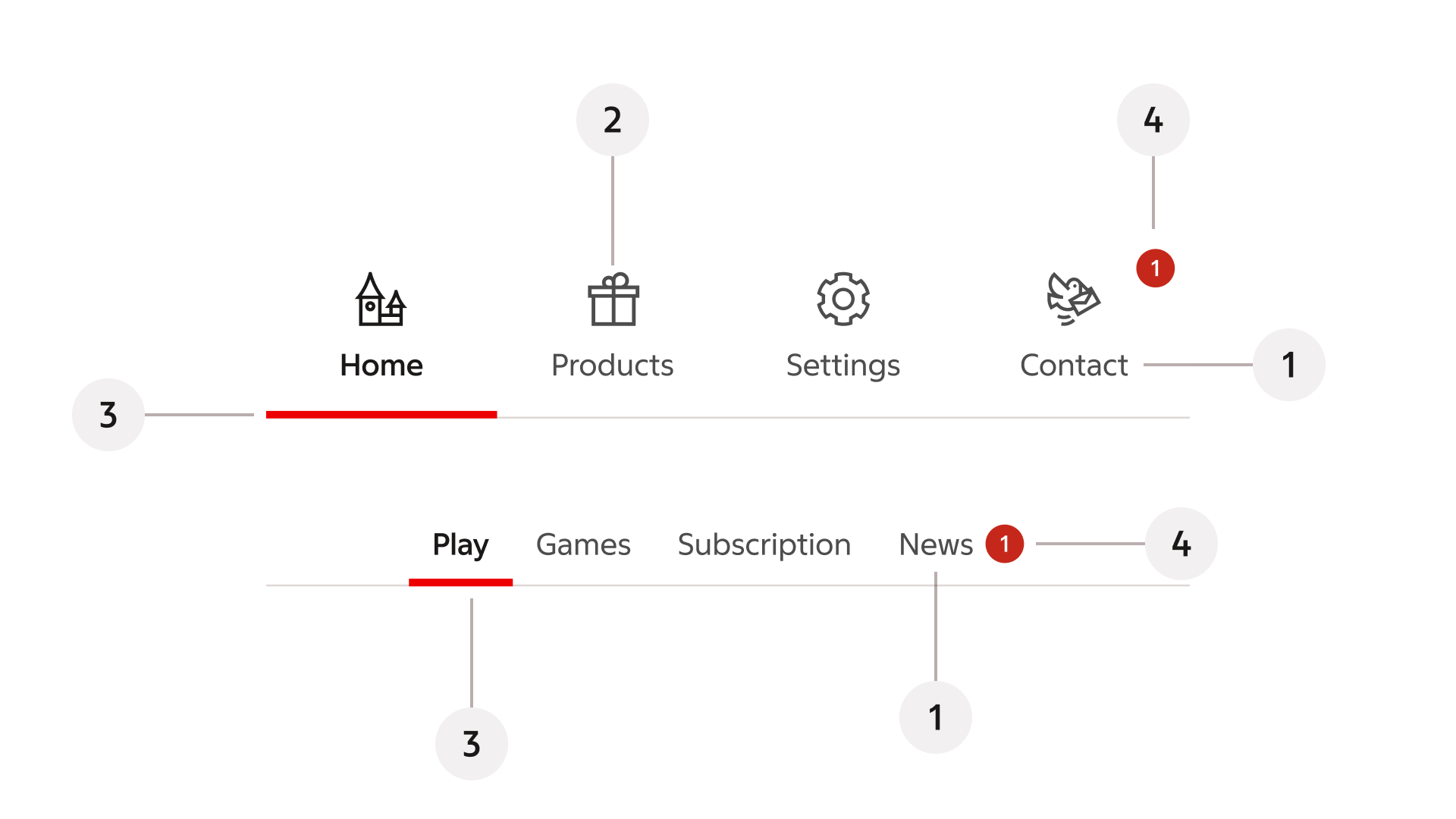
- Label
- Icon
- Stroke (selected state)
- Badge
Behaviour
Selected state
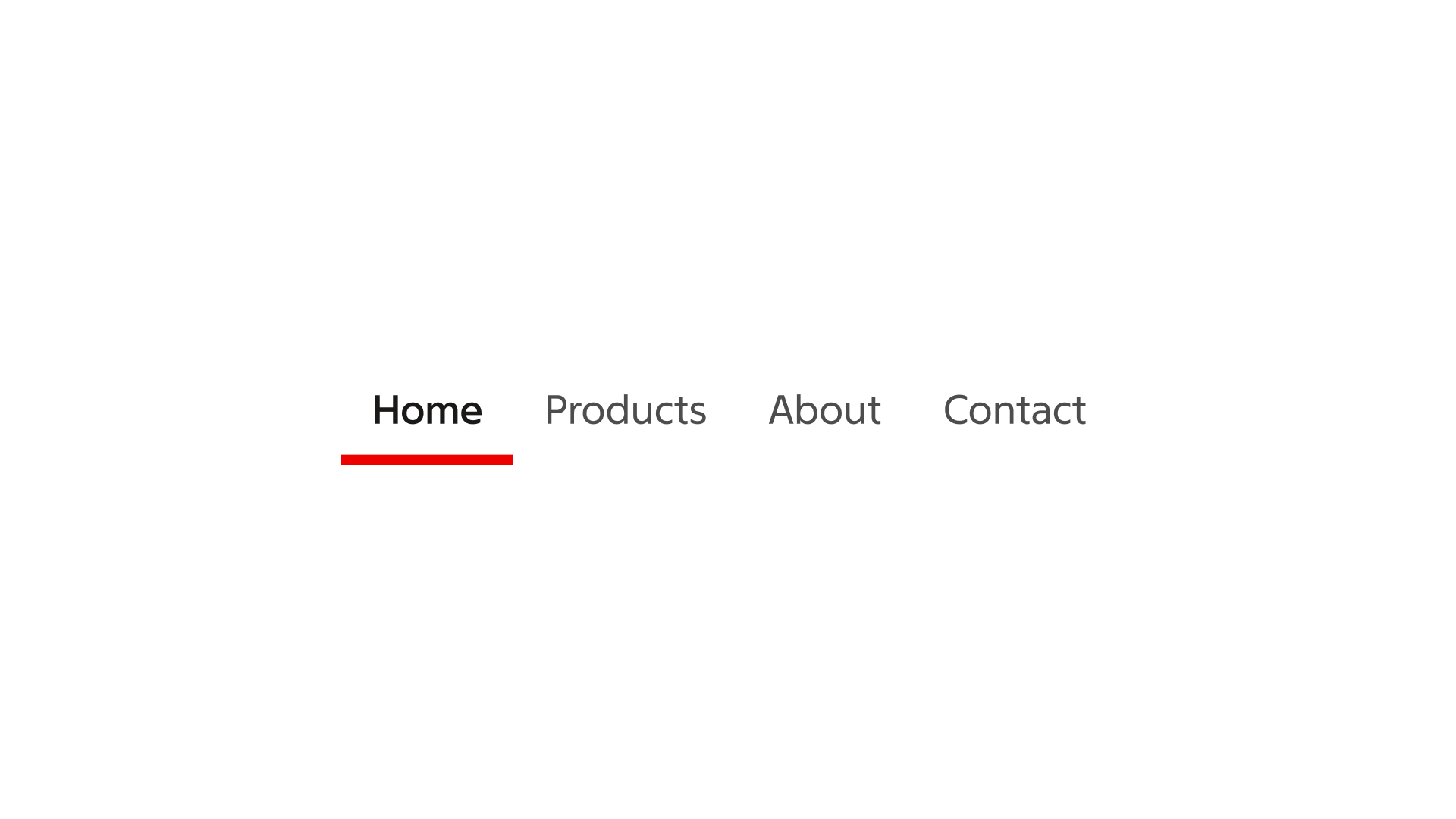
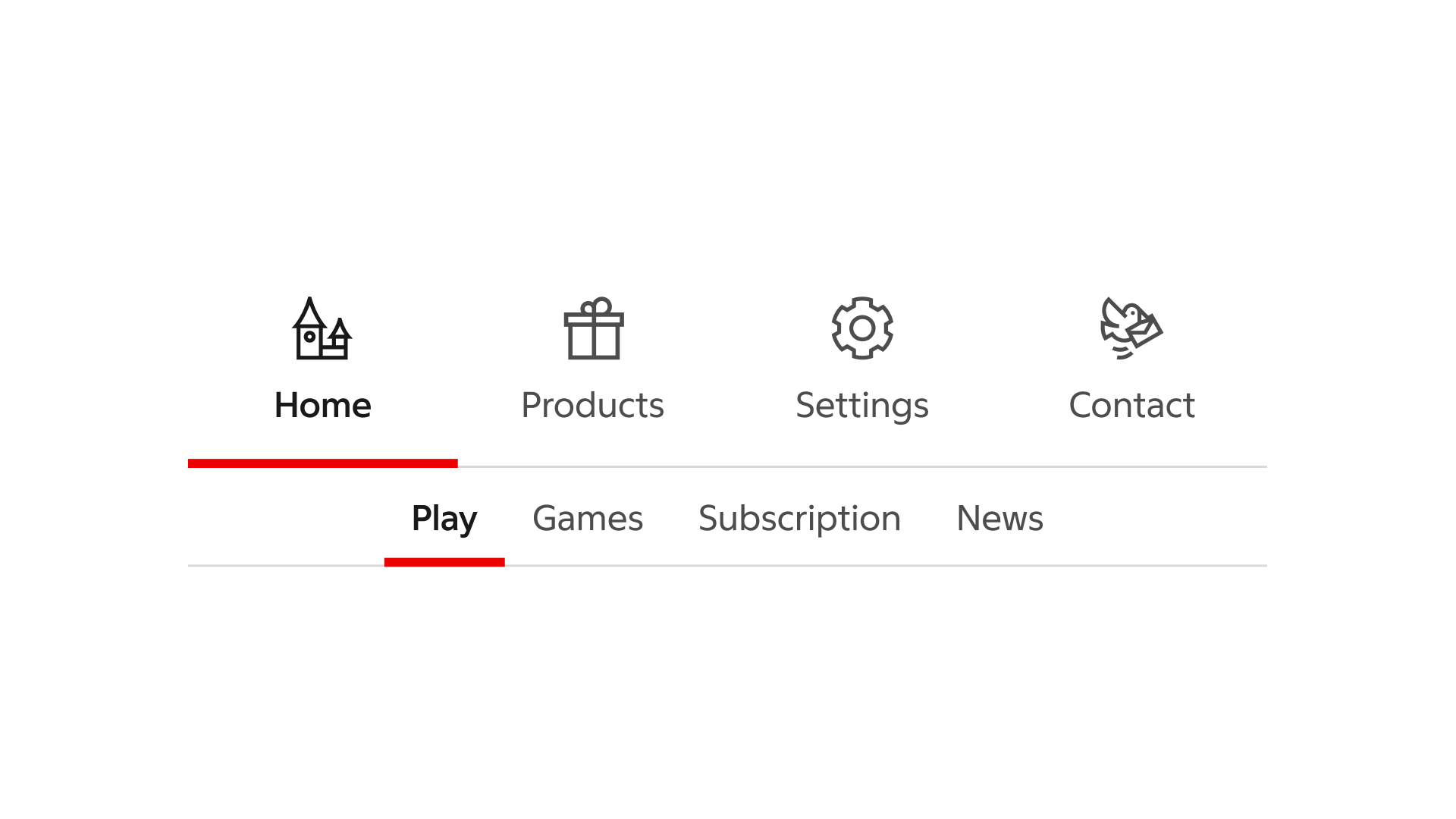
One, and only one tab may be selected at a time. The selected state is indicated with a stroke at the bottom of the item.
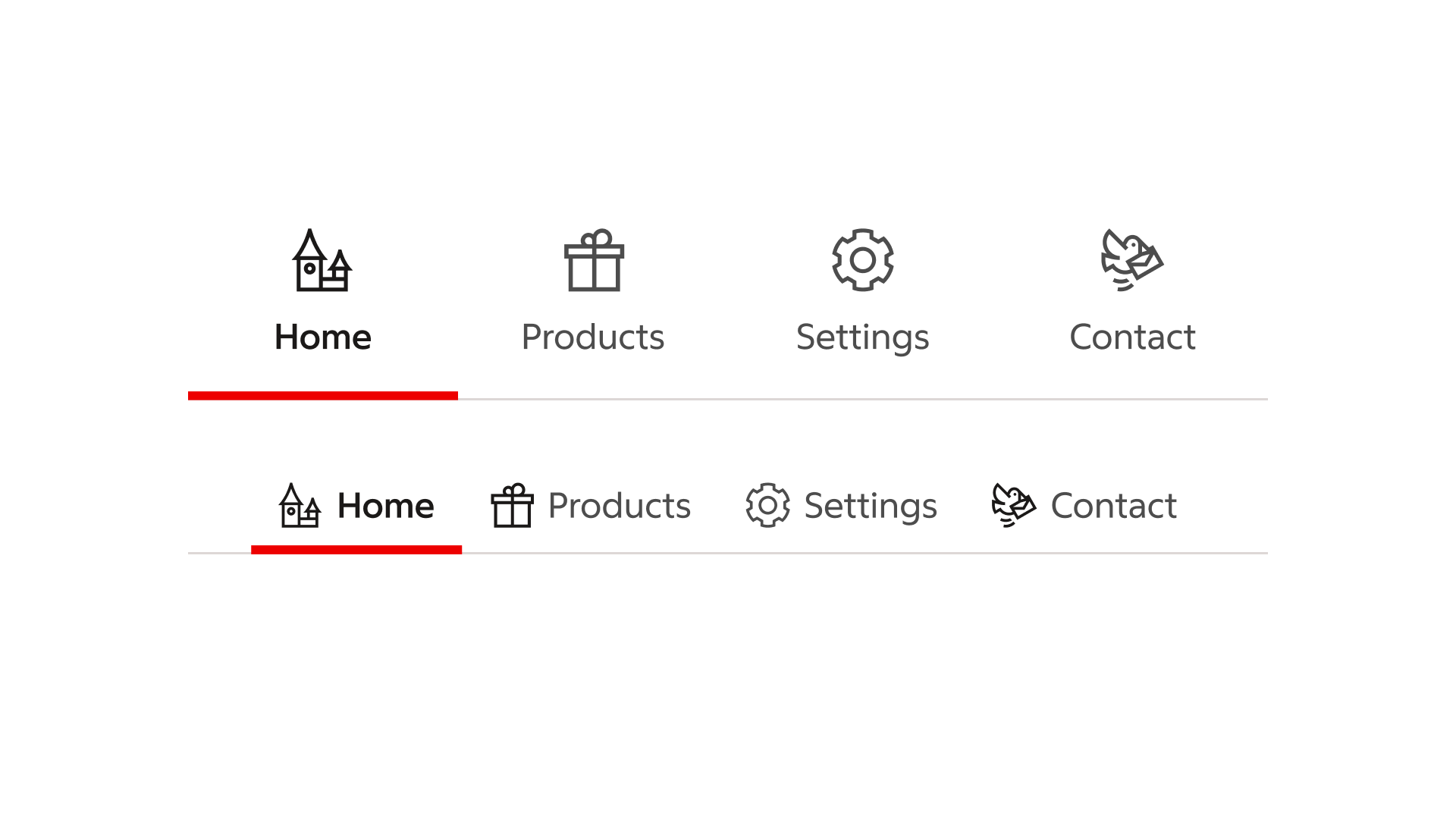
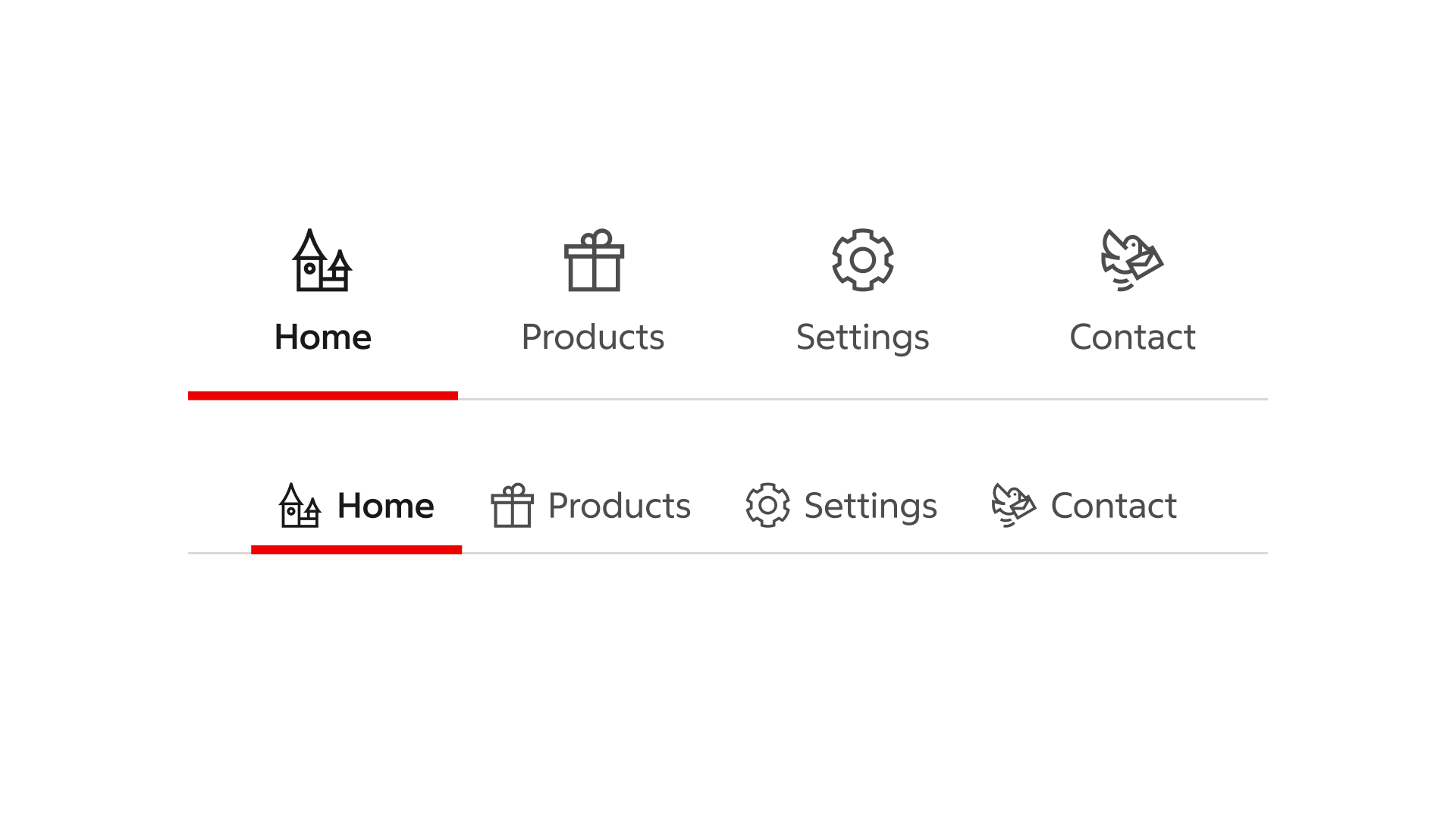
Tabs menus where the “home”-tab is currently selected.
Modify
Sizes
Tabs menu is available in three sizes, as displayed below.
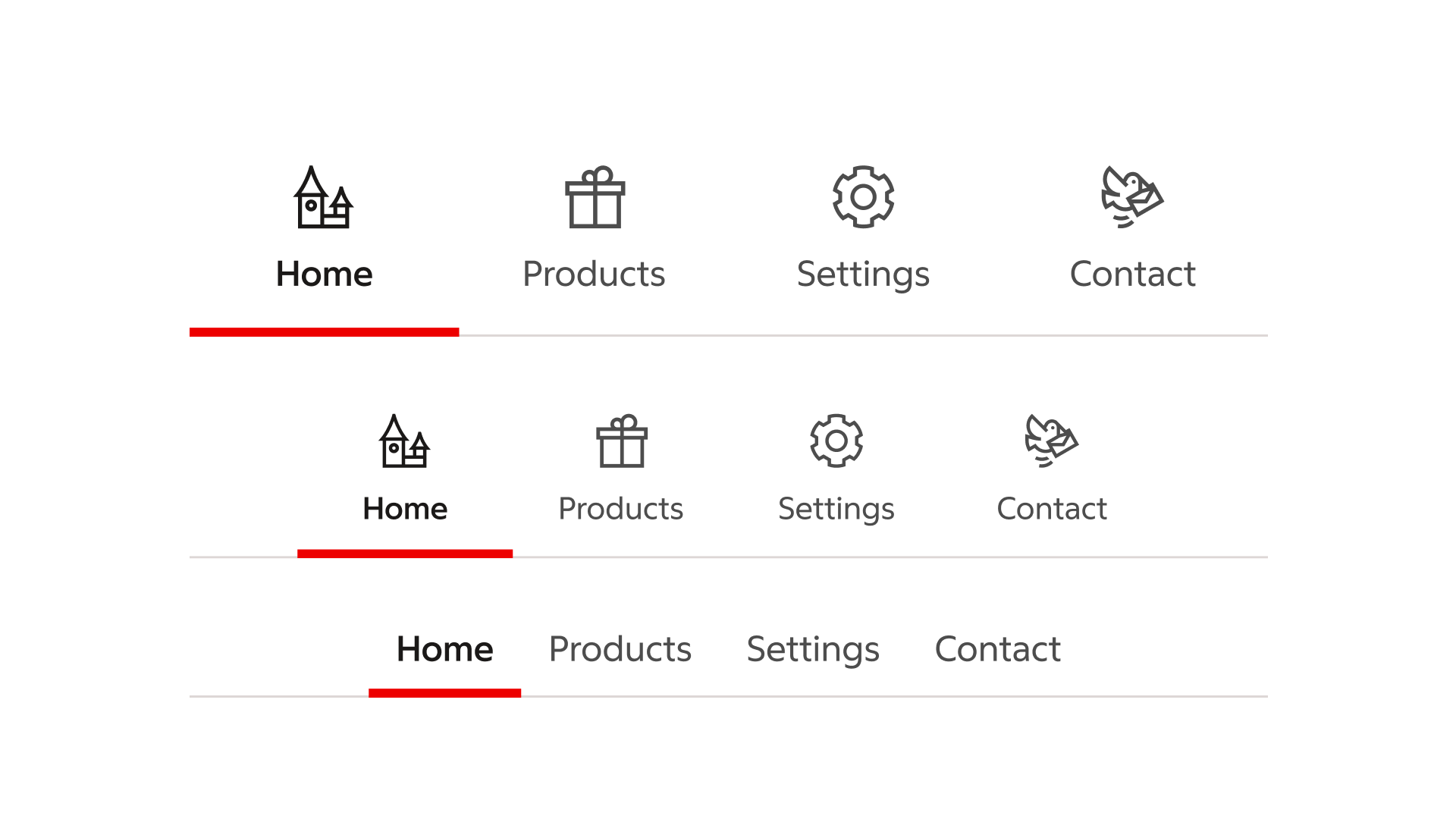
Tabs menu in sizes large, medium and small.
Icon
Obligatory in the large and medium variants, and optional in the small, tabs menu features the use of an icon for every item.
Large and small variants of the tabs menu, with a variety of icons.
Badge
Each item in the tabs menu allows for the use of a badge, typically to be used for alert the user of something they need to pay attention to in the associated section or page.
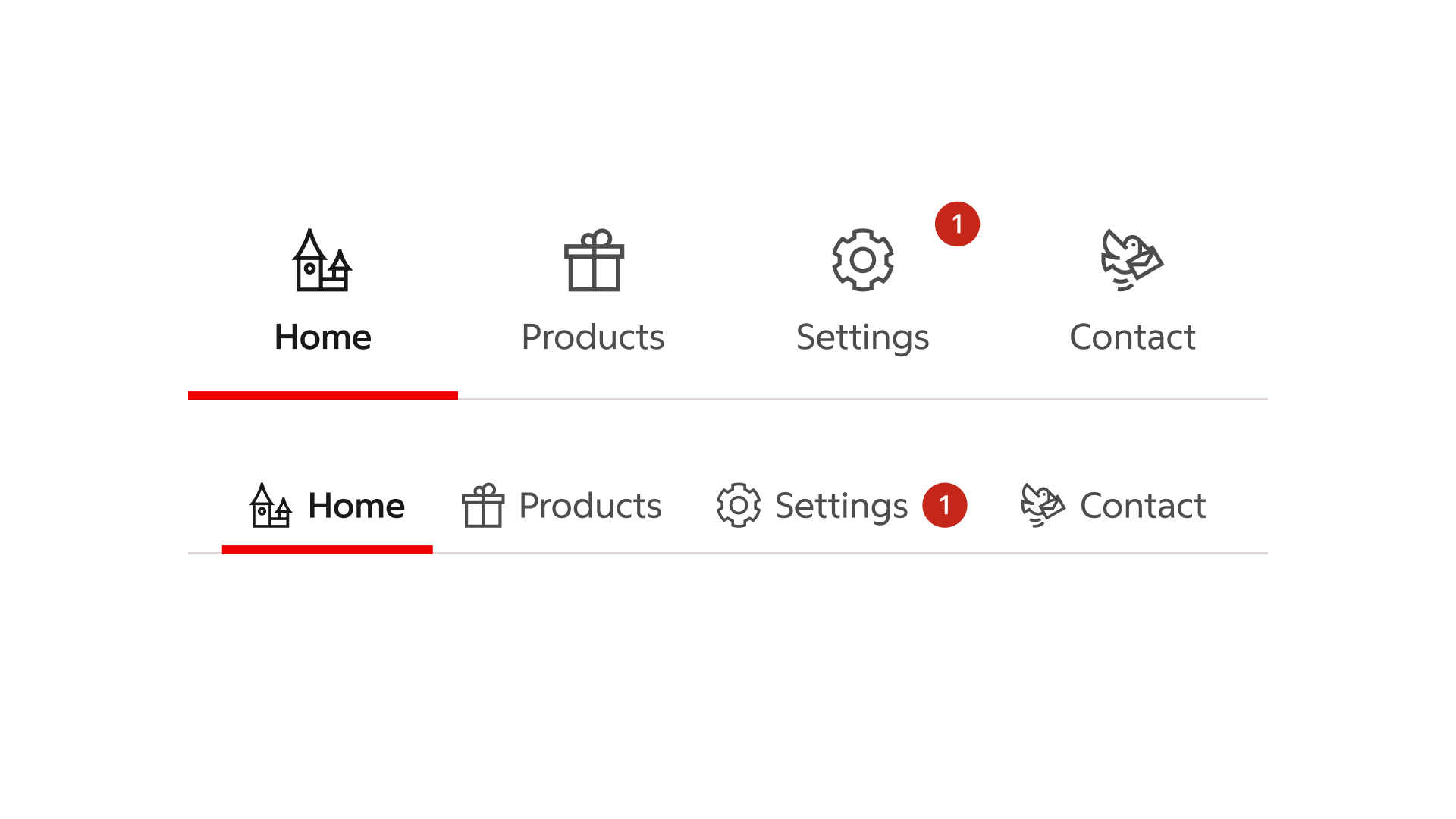
Menu items with badges in the “settings” section.
Alignment
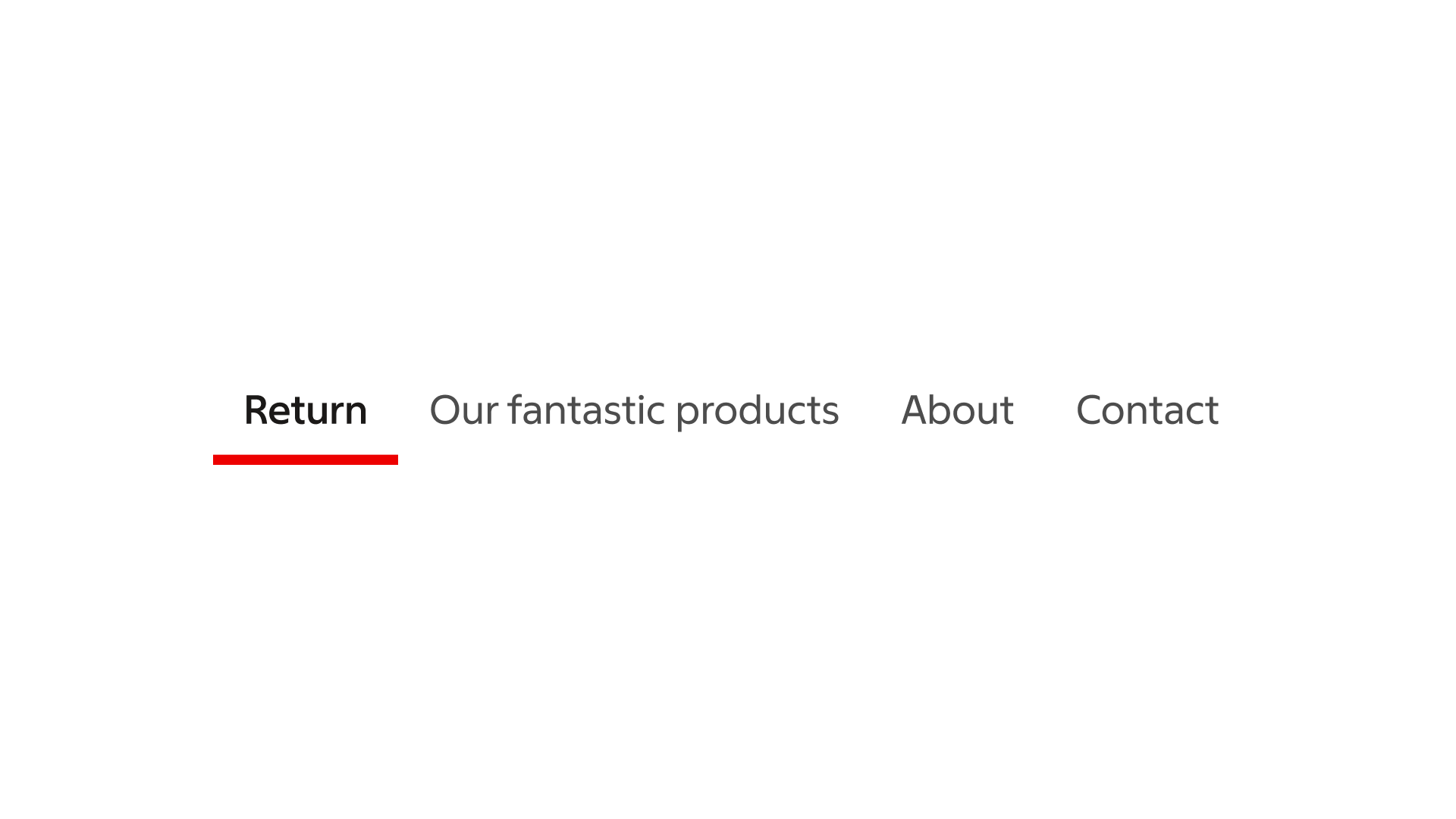
Alignment is key for design consistency and user experience. It ensures elements in your menu are properly positioned, improving navigation, aesthetics, and maintaining a consistent visual flow in your interface.
Align left
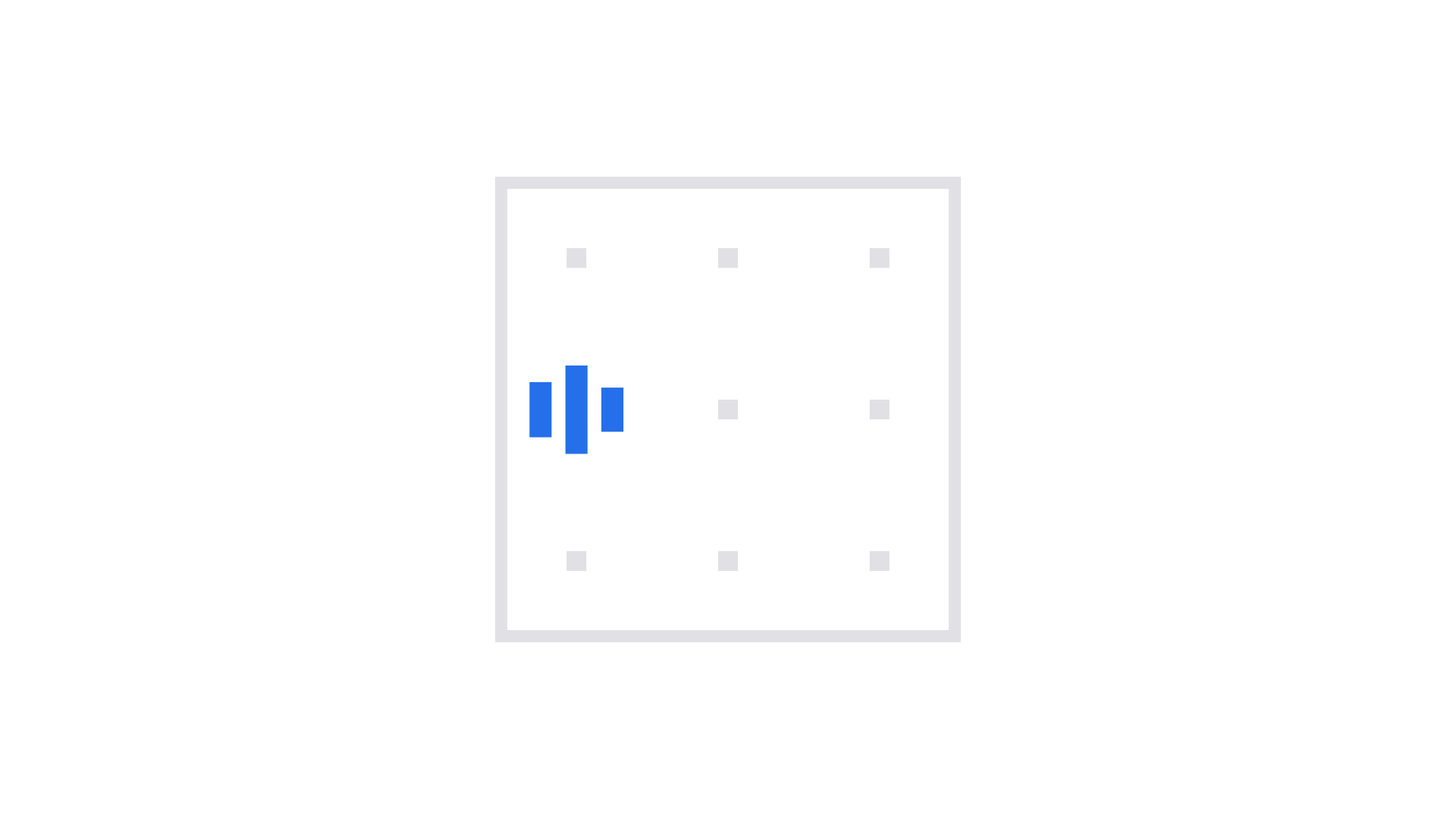
Use for left aligned design.
Align center
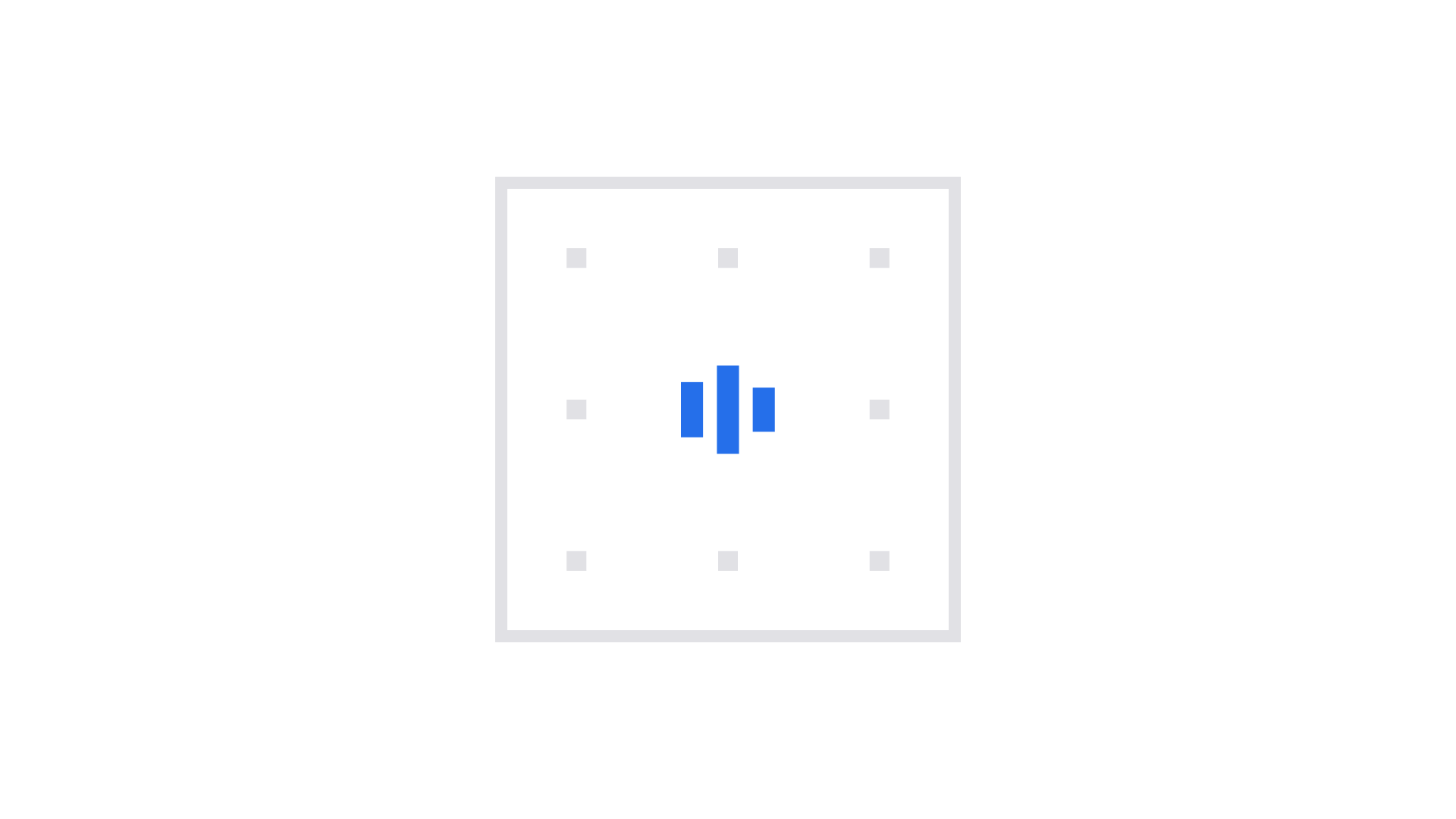
Use for center aligned design.