Components
SelectSelect provides a space-efficient way to make a selection from a list of options.
Usage
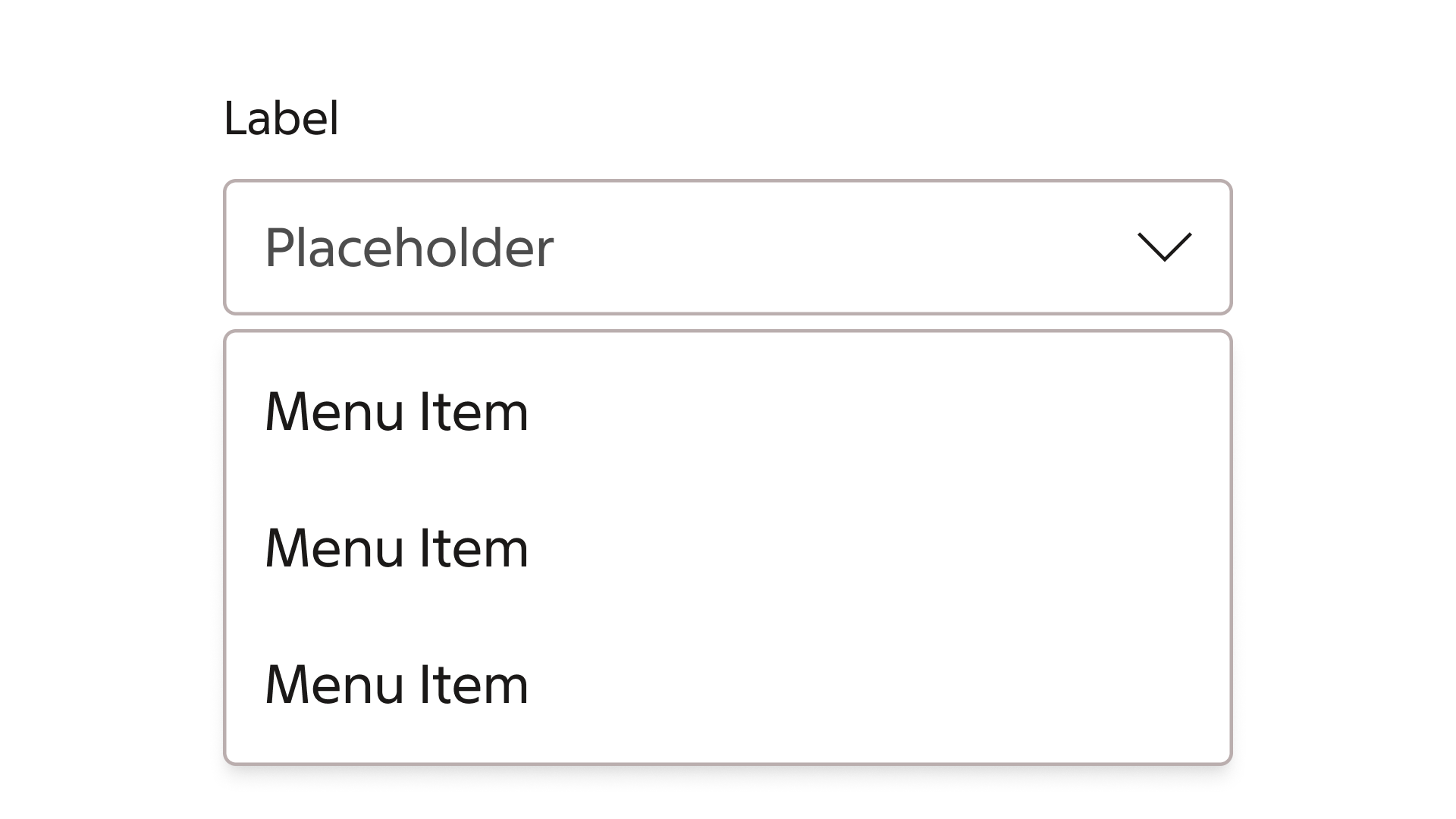
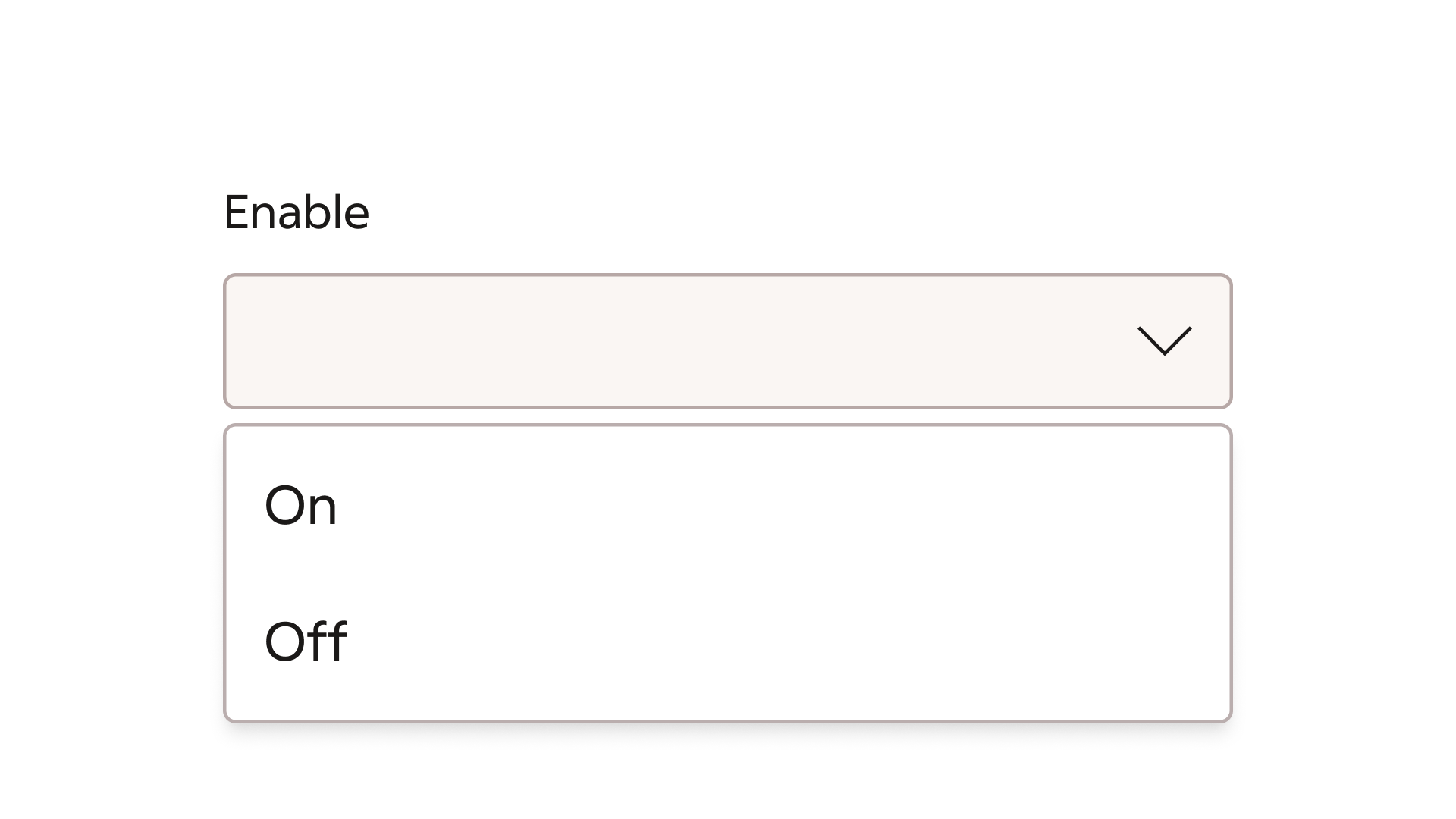
Select is suitable for handling a longer list of options for the user to pick from. For shorter list of options, consider using a radio group. Only one option may be chosen by the user. Options are presented as text, with an optional icon. The expandable menu can be presented with the native option available to the users device, or as a custom menu, with icon support.
Native menu
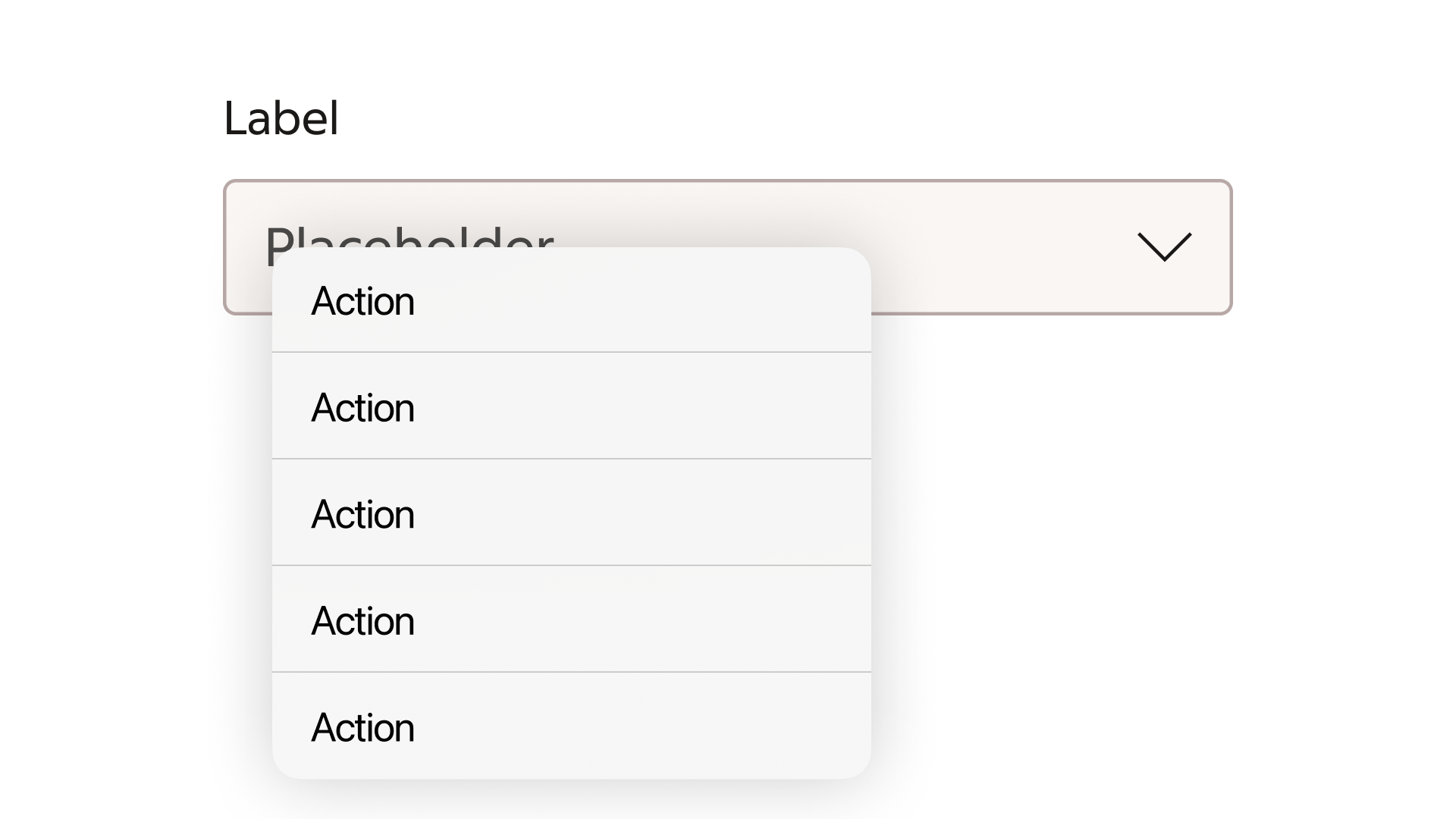
The select component utilizes the native menus of the user device, in the example an iOS menu.
Custom menu
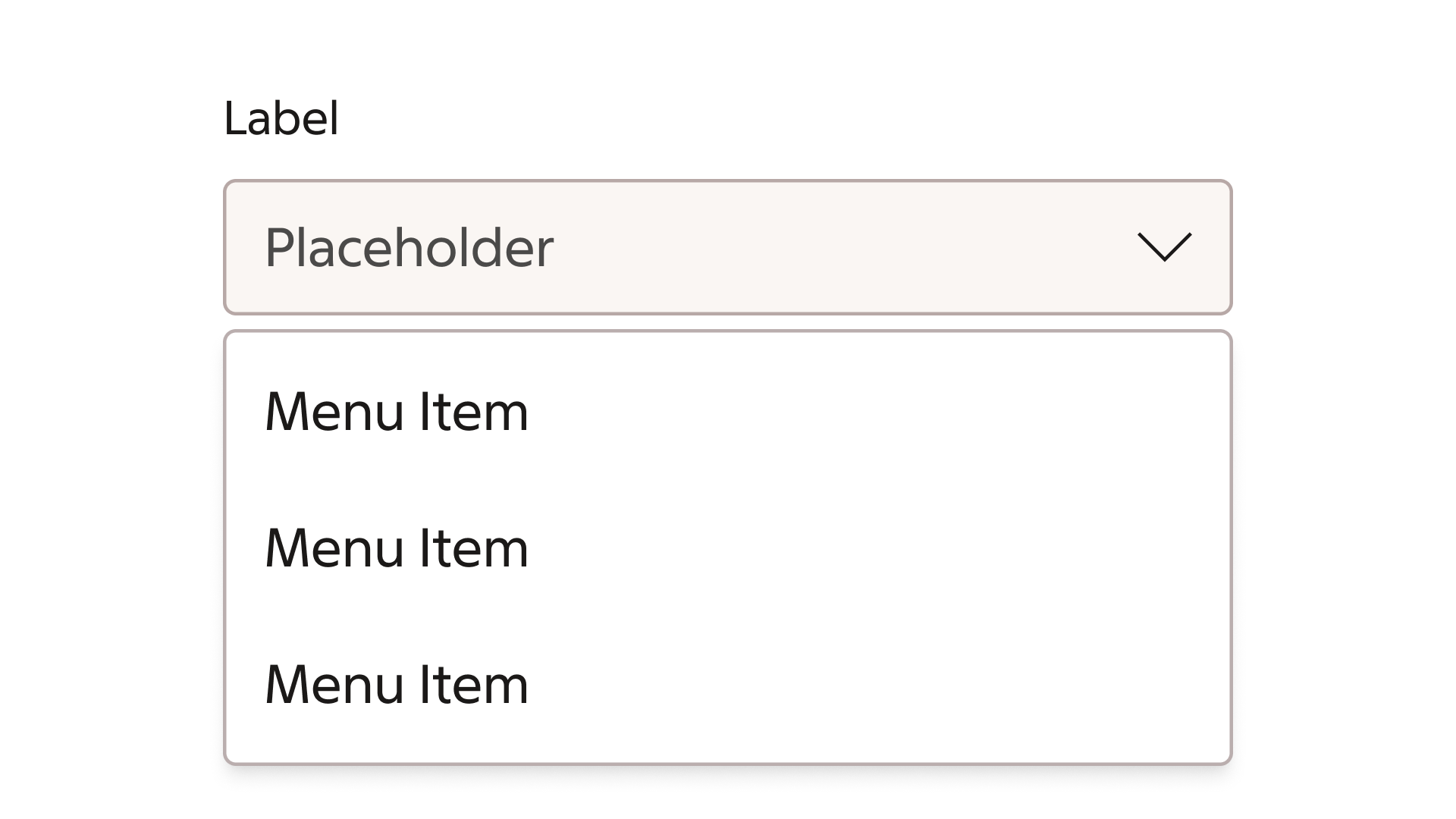
As an alternative the select component can utilize a custom menu, with support for, among other features, leading icons.
Use the appropriate component for the task
Interaction states
Default
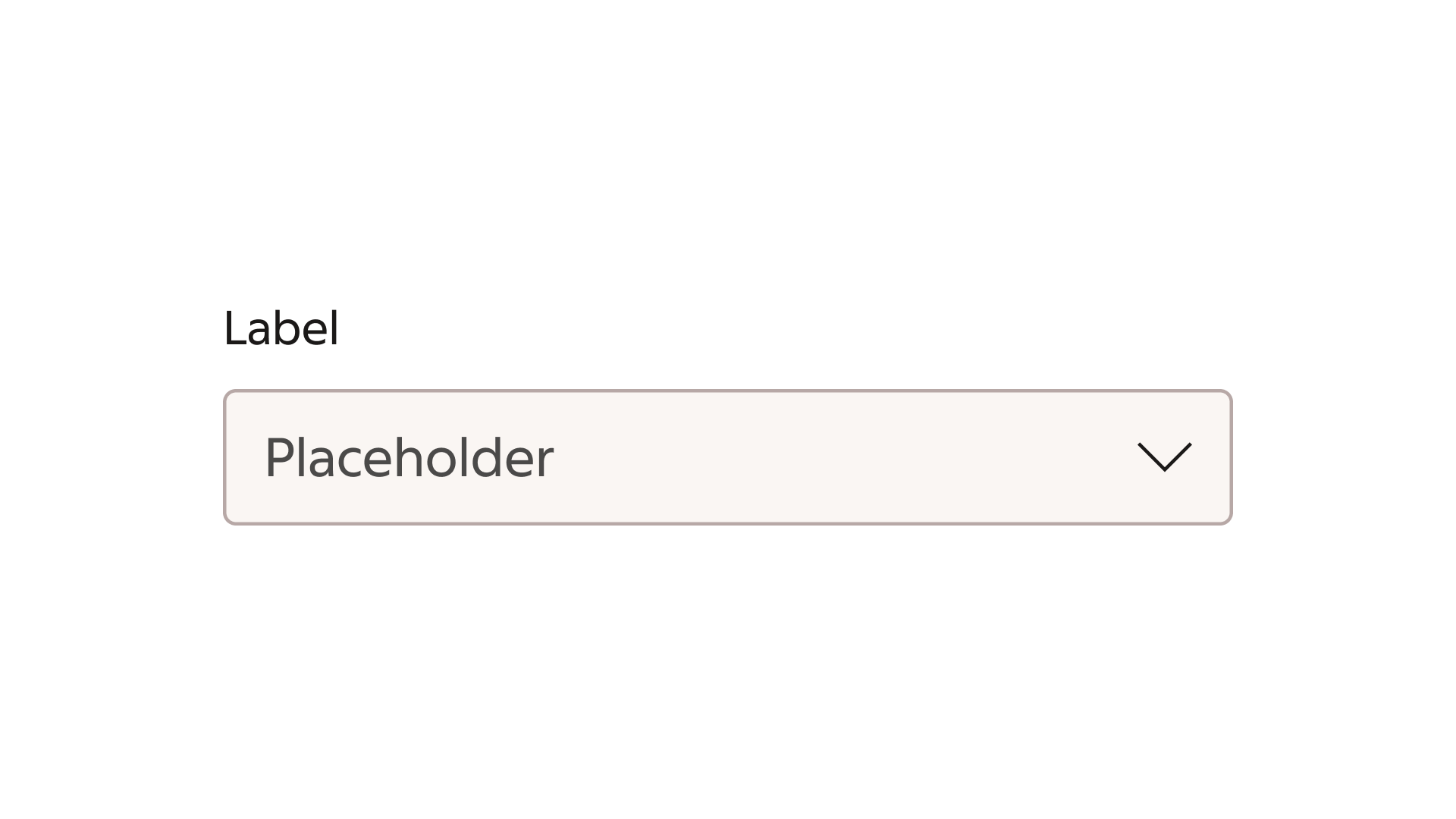
The default state, prior to user interaction.
Focus
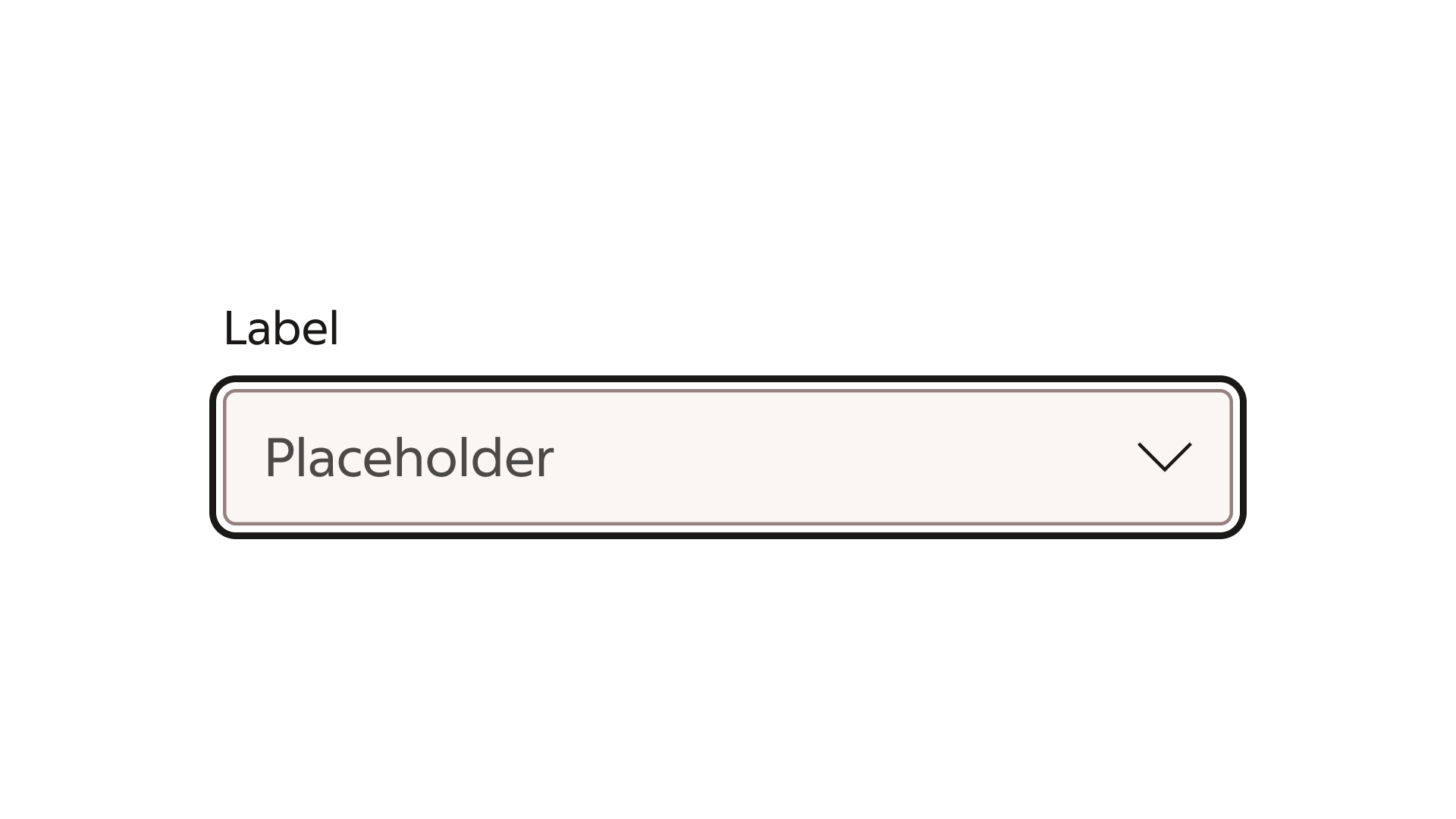
The select component is in focus.
Error
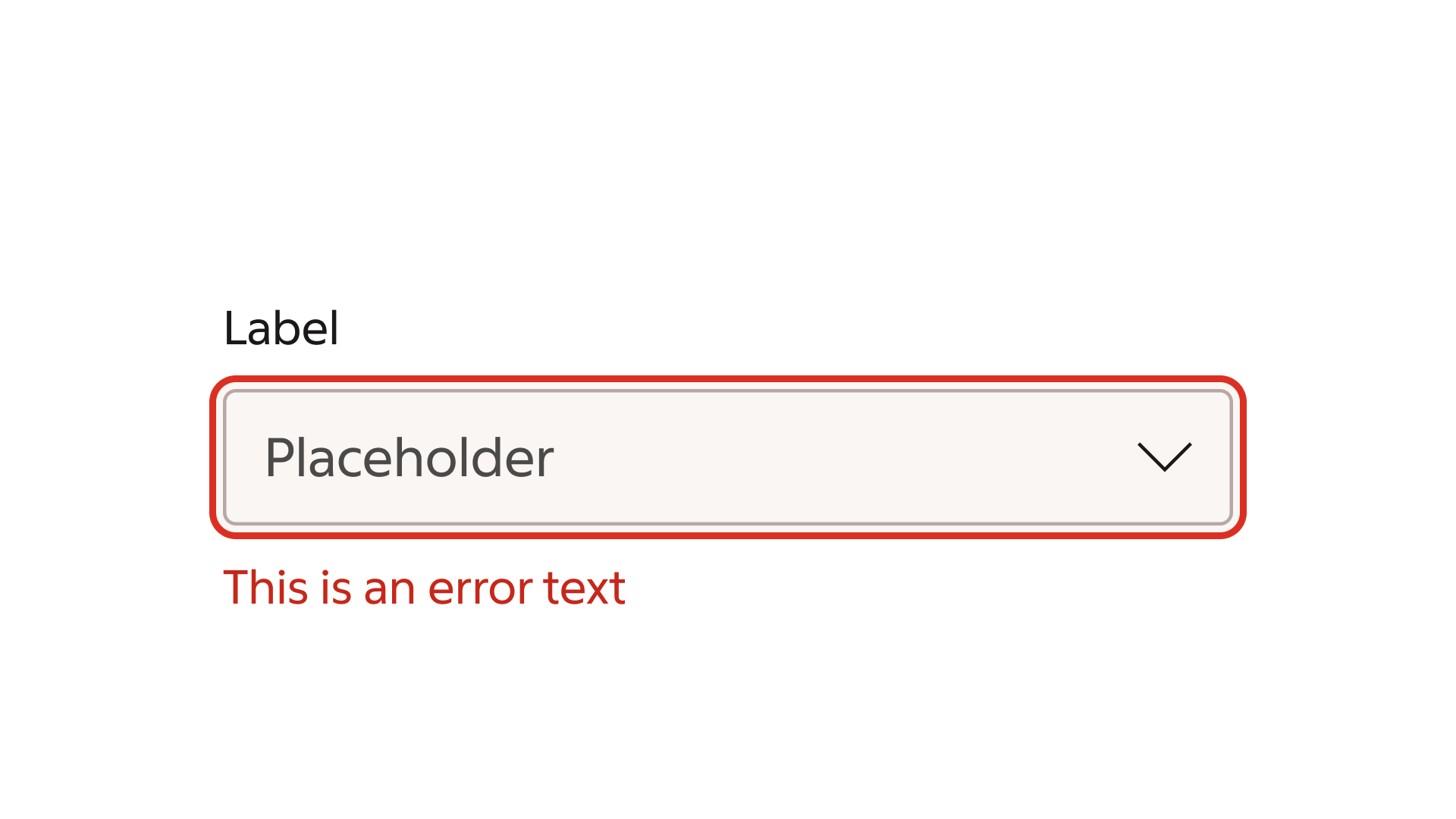
Validation has failed and an error message is displayed
Disabled
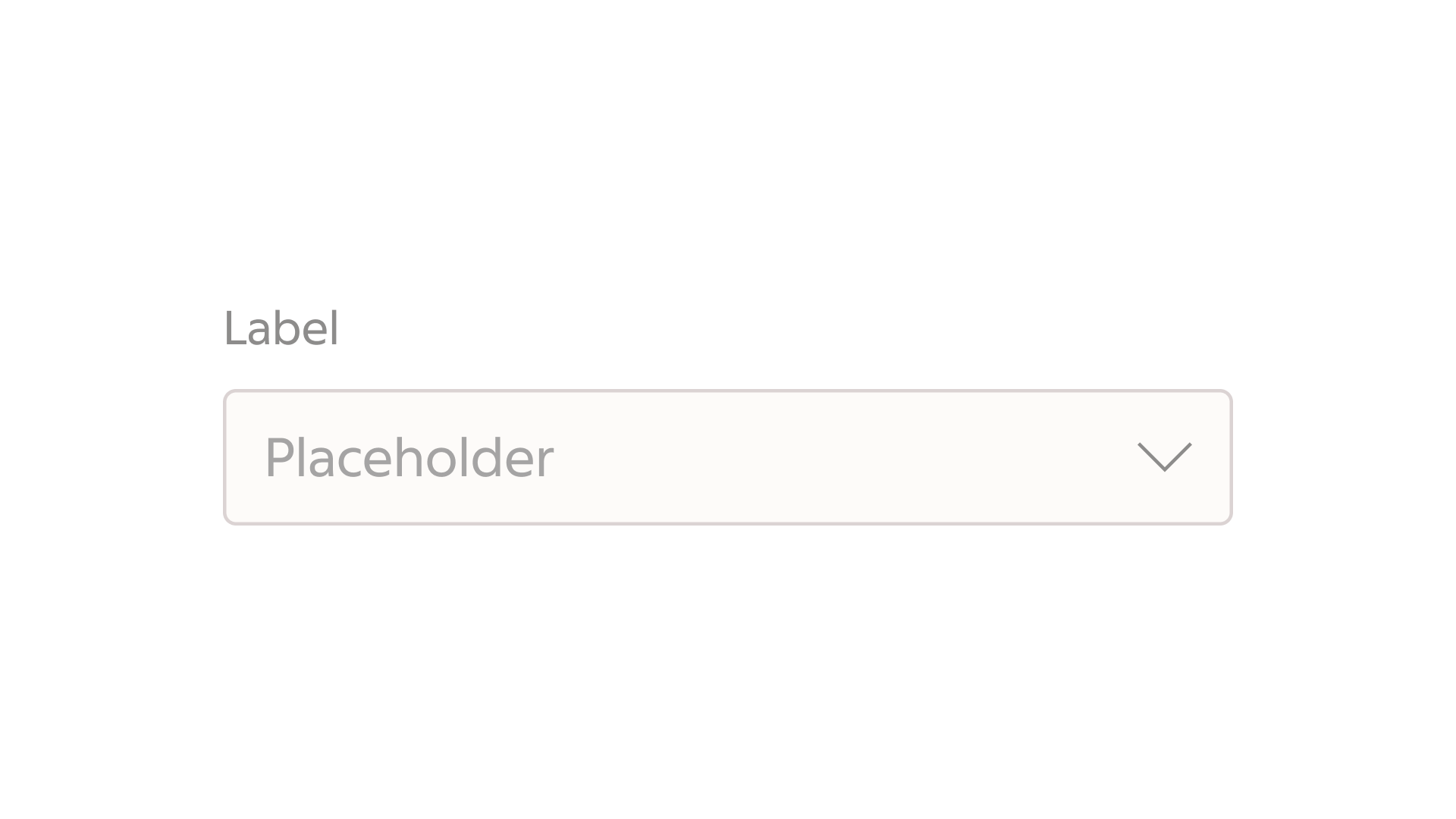
The Select component is not available for interaction. For accessibility considerations, avoid using the disabled state in your designs if possible.
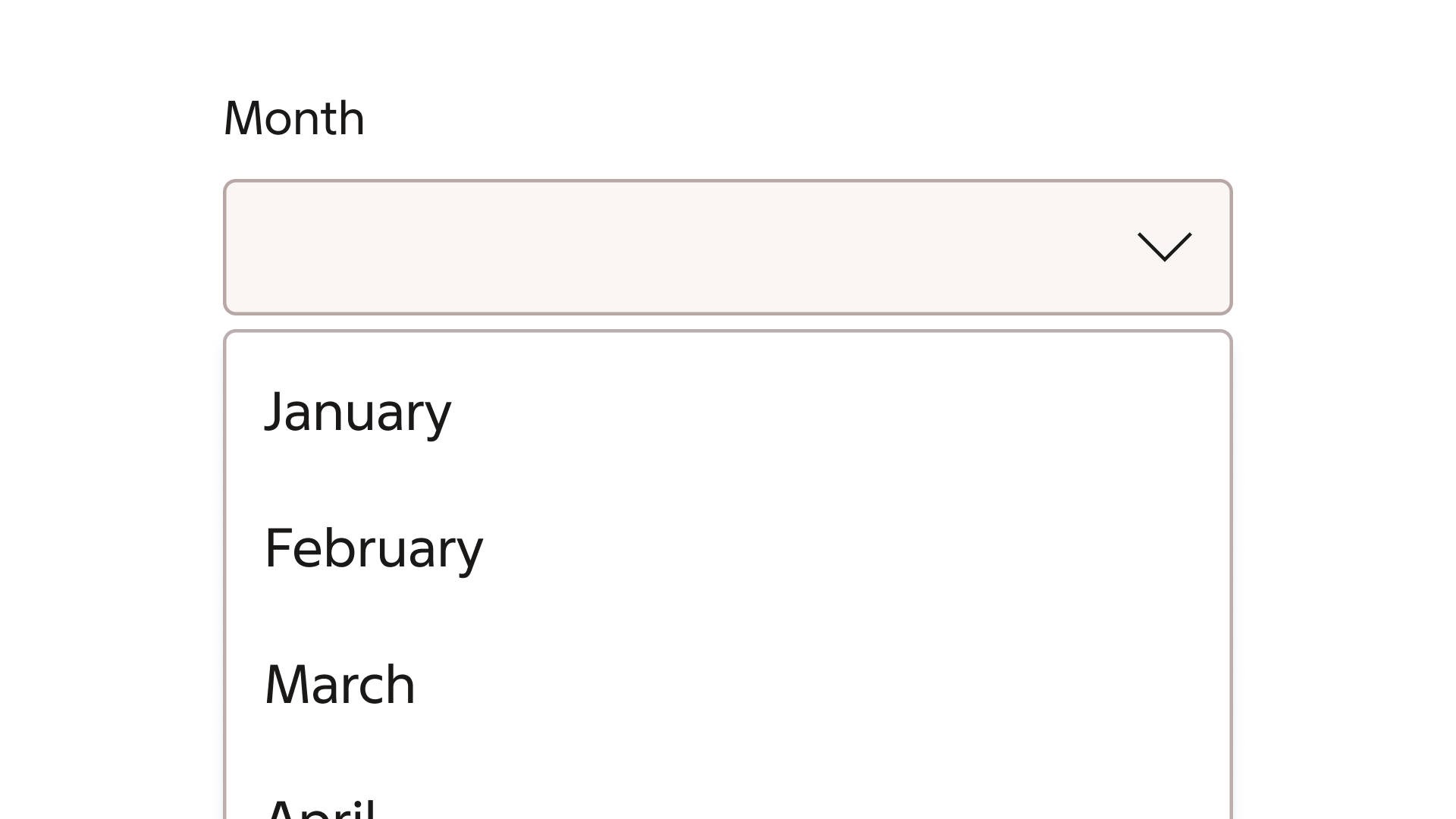
List options in a natural order
Make sure your list is ordered in a predictable fashion to allow the user to easily find the desired option.
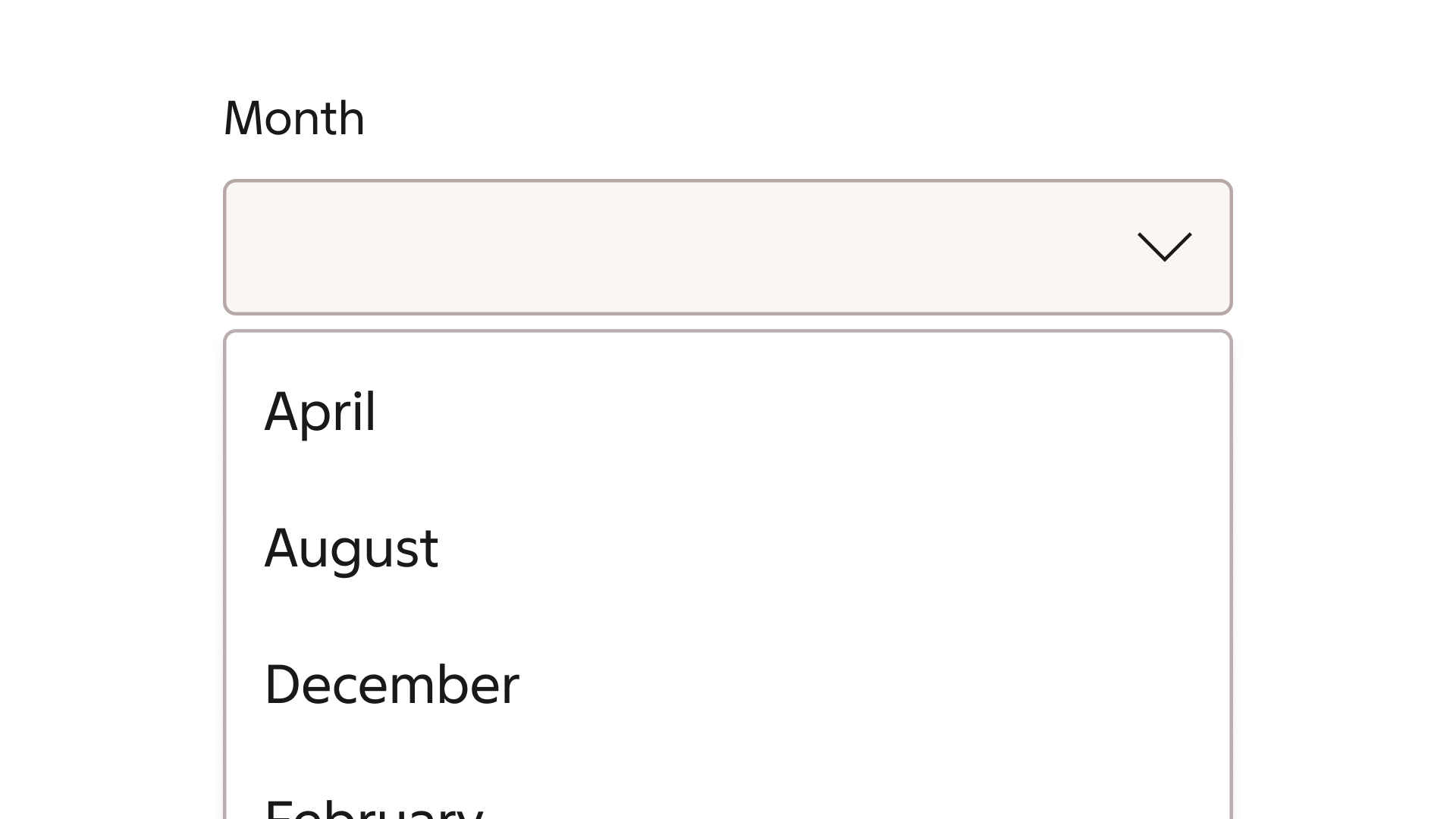
Formatting
Anatomy
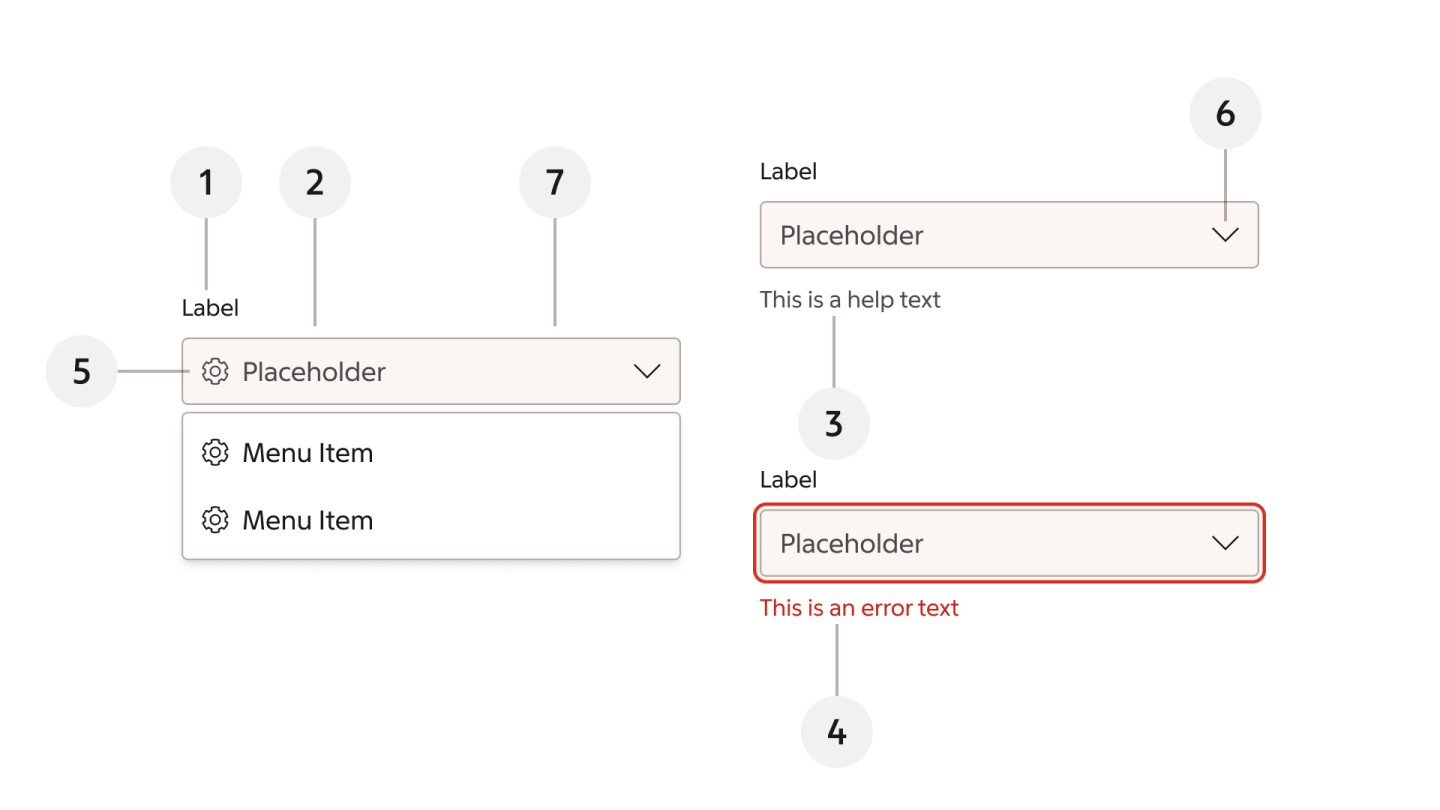
- Label text
- Placeholder / selection
- Help text
- Error text
- Leading icon
- Dropdown indicator
- Container
Label text
Describes the expected input, e.g. “Month” for a scenario where the user is asked to select a month of the year. Keep the label text short, clear and concise, and pursue to make it no longer than a few words.
Placeholder text
In case a first default option is not pre-selected, the placeholder text can be used to further guide the user.
Selection text
Displays the currently selected option.
Help text
The help text is an optional field that can be used to provide additional guidance or contextual information about the expected options. Consider using the help text when extra clarification is needed for the user to complete their task.
Error text
An error message can be displayed if the user has omitted making a required selection, or an invalid selection has been made.
Modify
Outline variant
The select component is available as an outline variant, where the background of the container is omitted. When using, be aware of accessibility considerations for the input and placeholder text against the underlying background.
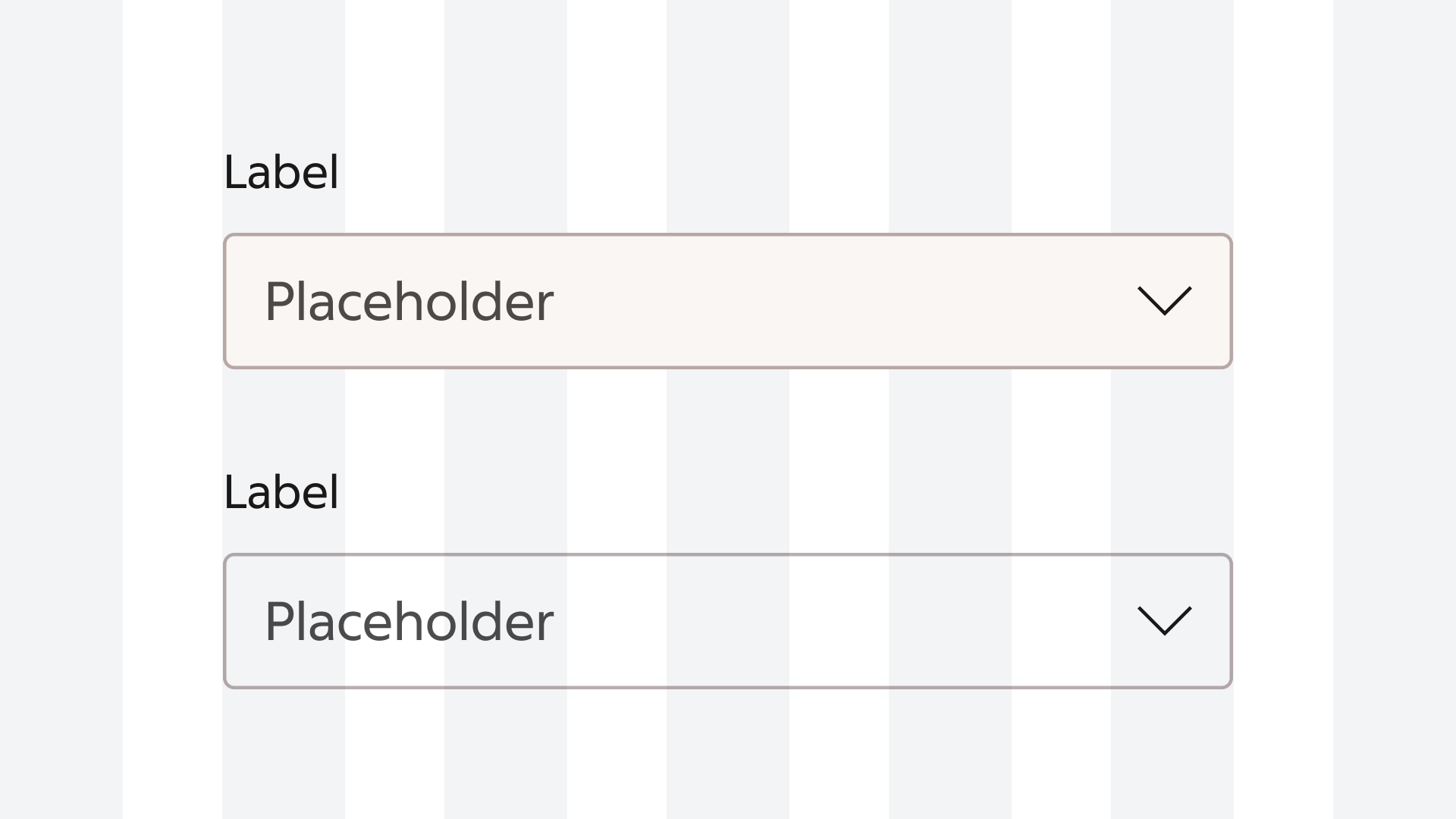
Input in solid and outline variants.